Showing posts with label step. Show all posts
Showing posts with label step. Show all posts
Monday, August 15, 2016
Cara mengirim File melalui FACEBOOK step by step
Cara mengirim File melalui FACEBOOK step by step
hay apa kabar hari ini saya akan membagikan cara mengirm,berkirim,mengirimkan file , foto, vidio dan lainya melalui jejaring sosial facebook ,mungkin sudah banyak yang posting cara beginian tapi semoga anda dapat lebih memahami cara ini dengan membaca artikel saya trimakaih langsung aja menuju TKP wkwkwkwkw ,.,


5.setelah anda memilih file akan tampil seperti di bawah ini dan anda pun tinggal mengecek apakah ada yang kurang jika tidak langsung aja klik kirim (tampilan proses ketika file masih dalam proses akan tampil pada seperti gambar yang saya lingkari

1. langkah pertama anda harus masuk facebook kamu sendiri jangan orang lain hahahahha
2.masuklah ke kronologi teman anda yang akan di kirimi pesan ( mengirm,berkirim,mengirimkan file , foto, vidio dan lainya) klik pada pesan seperti yang sudah saya tandai tersebut
3 setelah anda klik pesan akan ada tempilan seperti di bawah iniketika anda mau nengirimkan berkas atau file kliklampirkan file (begitu caranya)
4 .ketika anda klik icon lampirkan file akan ada tampilan seperti dai bawah ini dan anda di suruh memilih file/berkas yang lainya jika sudah klik open
5.setelah anda memilih file akan tampil seperti di bawah ini dan anda pun tinggal mengecek apakah ada yang kurang jika tidak langsung aja klik kirim (tampilan proses ketika file masih dalam proses akan tampil pada seperti gambar yang saya lingkari
jika artikel membantu klik like ya trimakasih semoga anda mudeng ya wkwkwkkwkw sampaijumpa

Monday, August 1, 2016
Enable Two step verification for your Naver account
Enable Two step verification for your Naver account
Today Ill walk you through a brief tour of enabling two-step protection on your Naver account.
Two-step verification, or Two-factor authentication (i.e. getting a code on your phone to sign-in), adds an important layer of security to your account. I have this set-up on my Google account. I didnt notice this until recently, but Naver (???) also lets you enable this security feature, though they refer to it as OTP. With all the hacking stories out there, its useful to "set it and forget it." Its pretty simple if youre already familiar with 2-step authentication, with one main difference: the Naver app itself is used for generating the codes. But well get to that.
Creating a Naver Account
The brilliant thing is that 90% of all this process can be done in English. Creating a Naver account and editing all major account settings on Naver can all be done in English (and Chinese), even though most Naver function beyond that are only in Korean. No Alien ID Numbers (??? ?? ??) or passport numbers are needed; but you will need a mobile phone to receive a verification code. I was required to enter a Korean (+82 prefix) phone number, but when signing-up from abroad, you can choose from an international country drop-down list.
---
Enabling the Protection
Once youve created your Naver account (and it really is super simple), we can enable the Two-step verification.
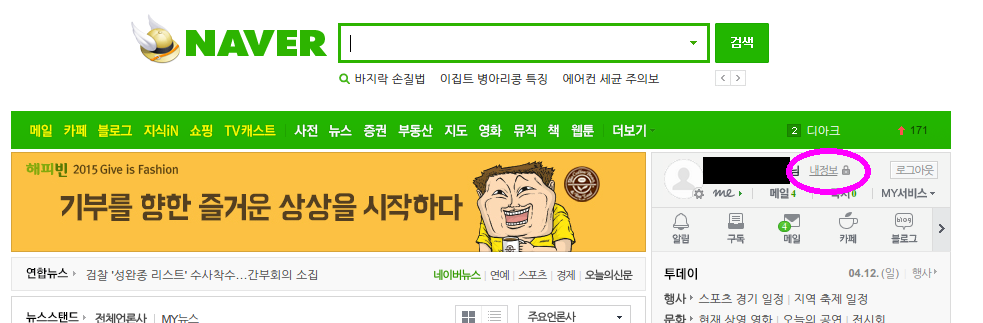
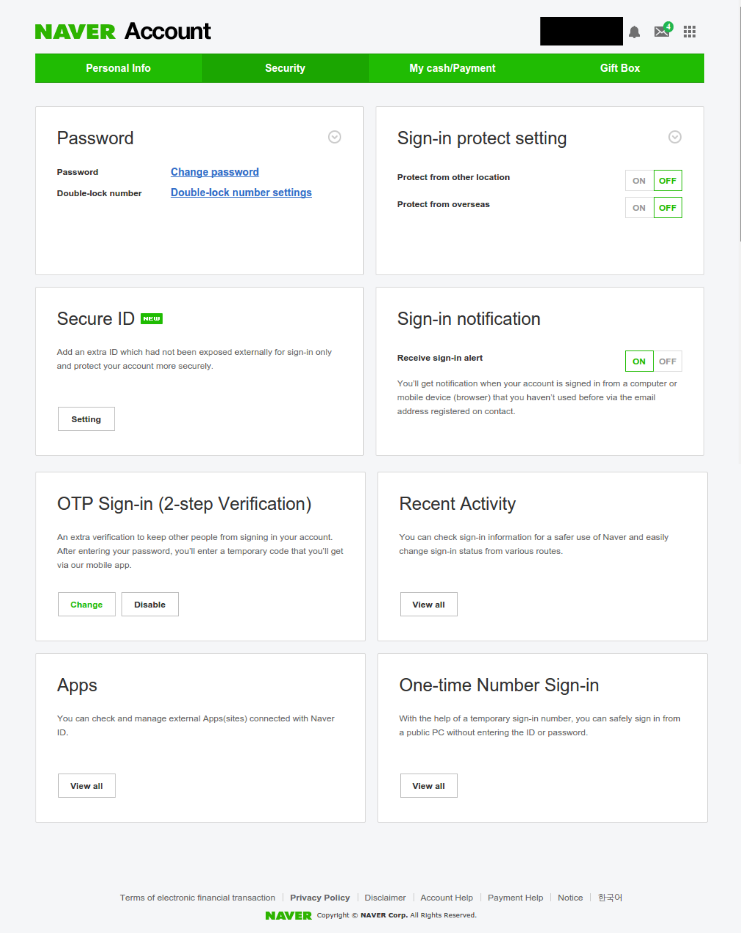
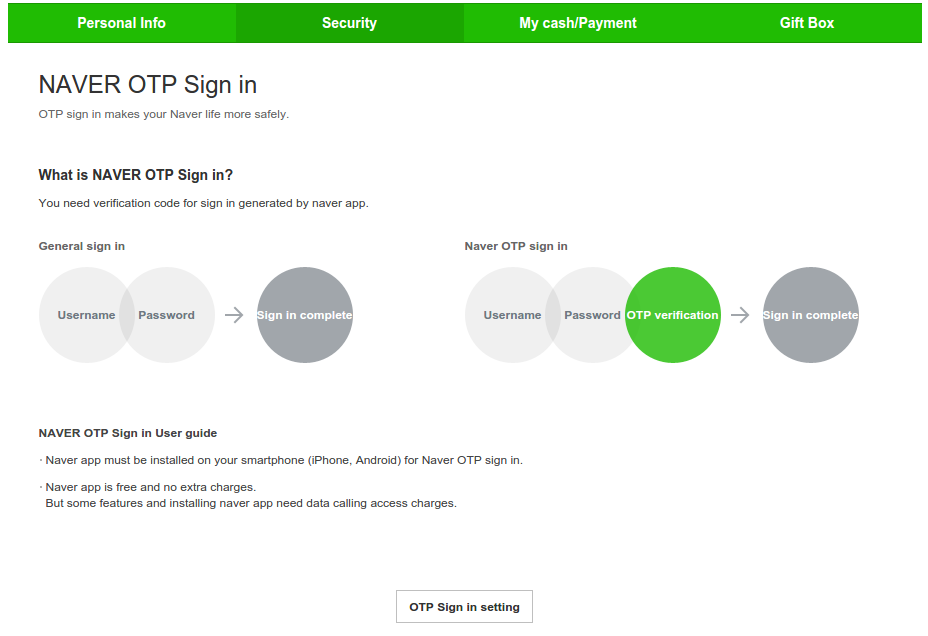
Part of the reason may be this:
The malicious application attacks a smartphone to steal personal information in the phone by pilfering authentication SMSs when the person uses an e-commerce payment service. [Korea Bizwire]
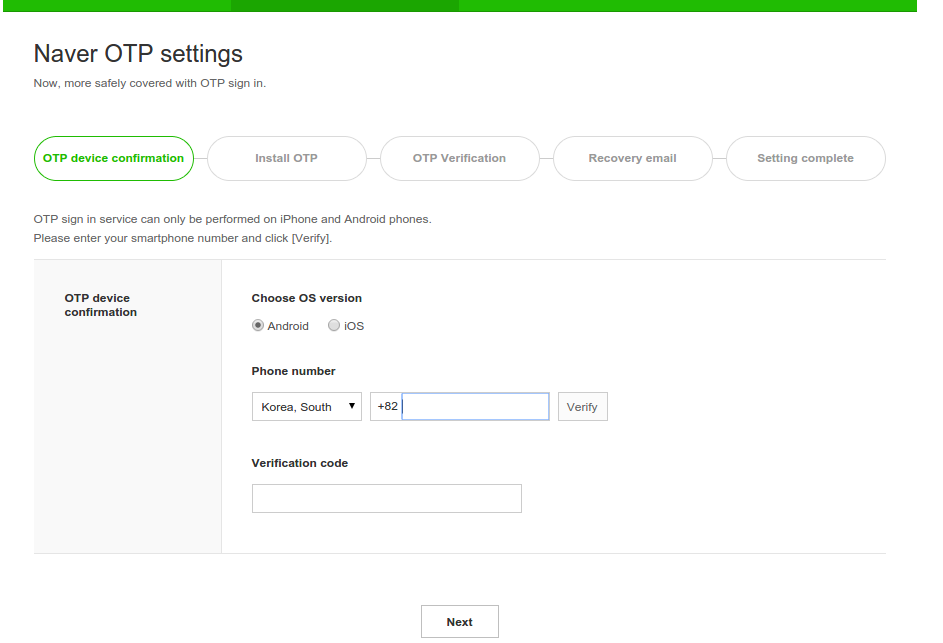
Note also here that the phone number you use here does not have to be the same number associated with your account (the number you gave when signing-up with Naver). For example, I didnt want to install the bloated Naver app, so here I used the number of a family member who does have the app. It worked just fine, though of course Ill need that persons phone when logging-in on an unknown/untrusted computer. Input the number, Naver will send you an SMS code, and input that code here.
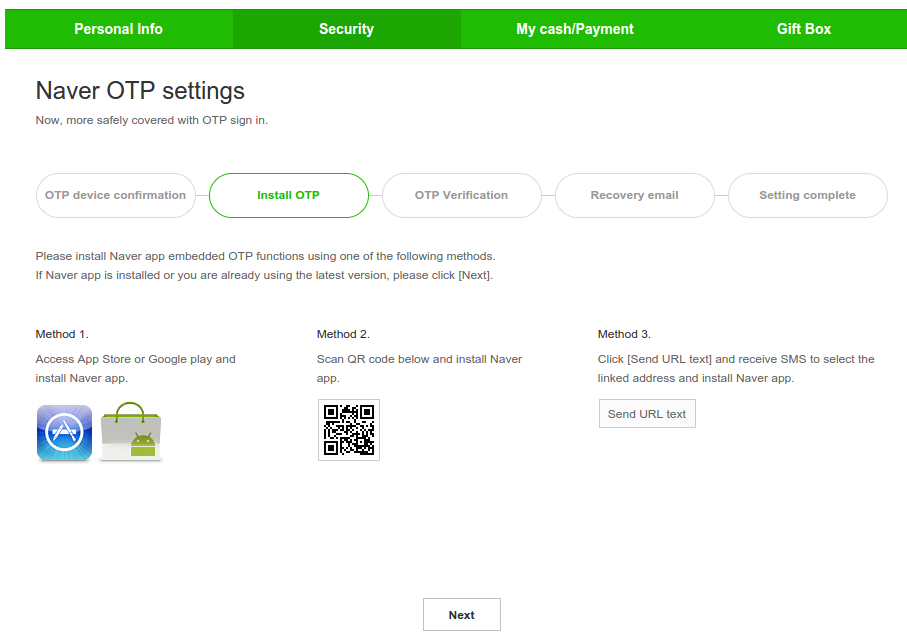
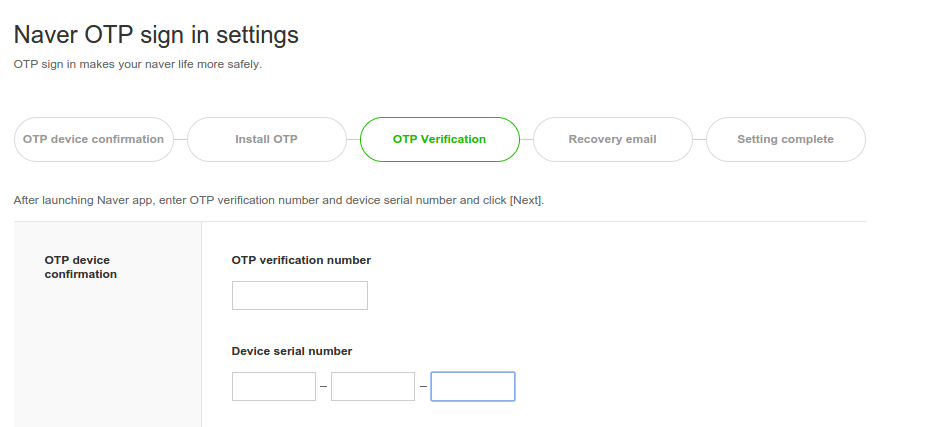
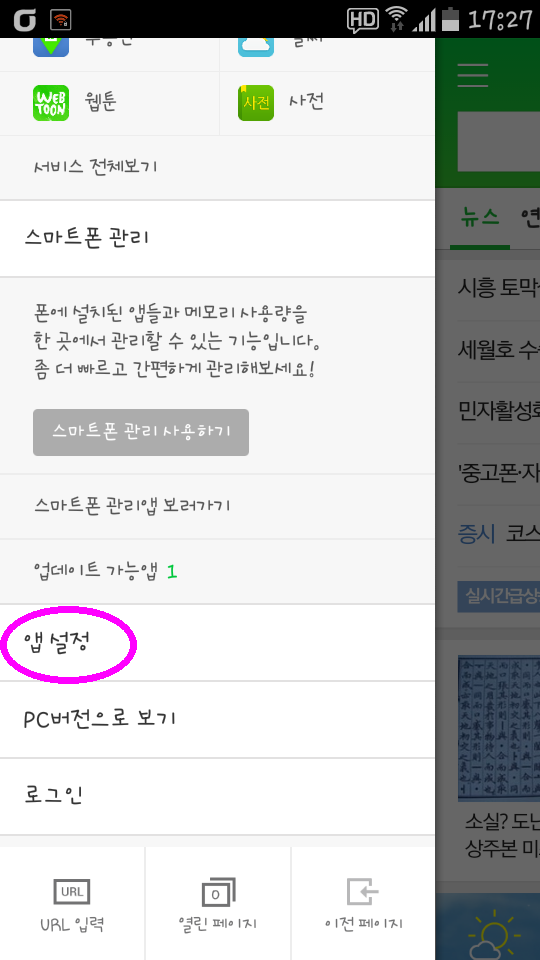
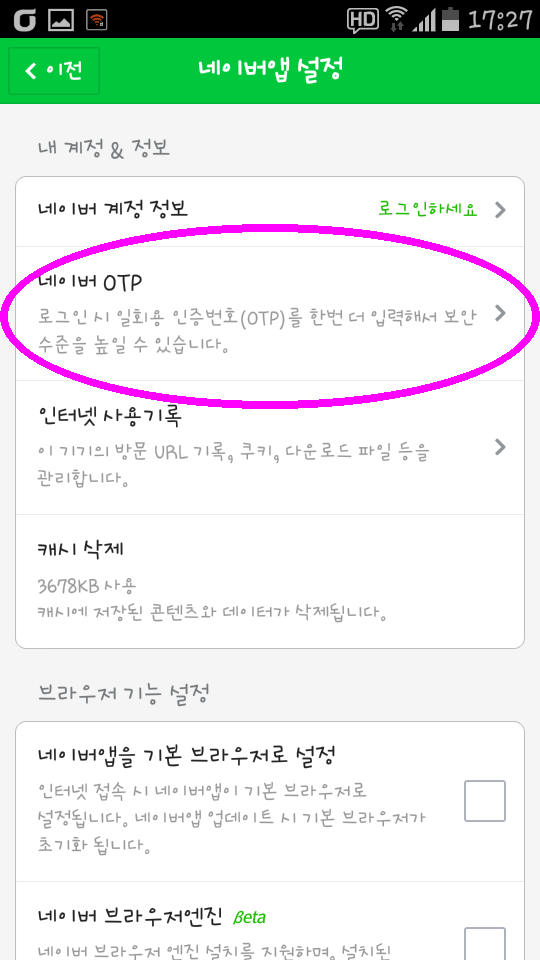
If youre not sure where to get this code, Ill show you now.
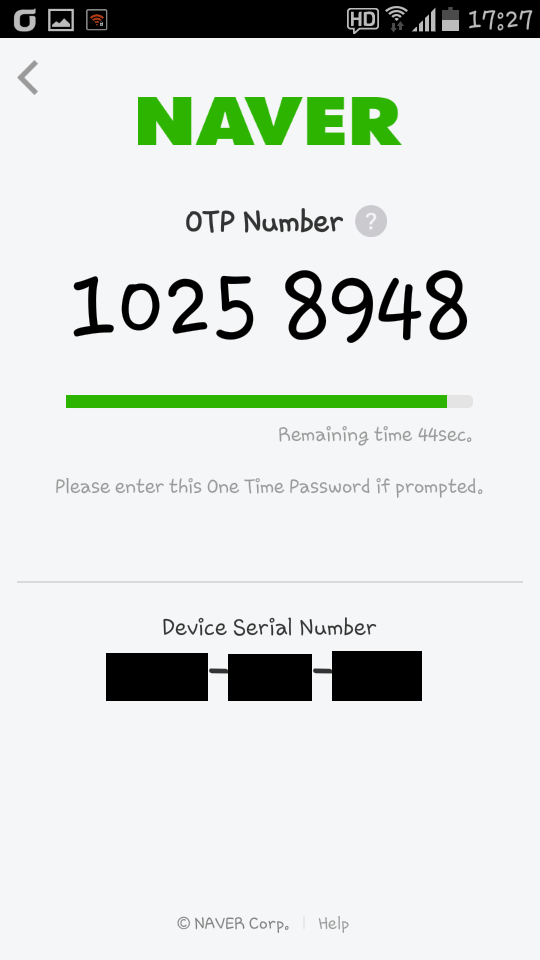
Now back to the set-up:
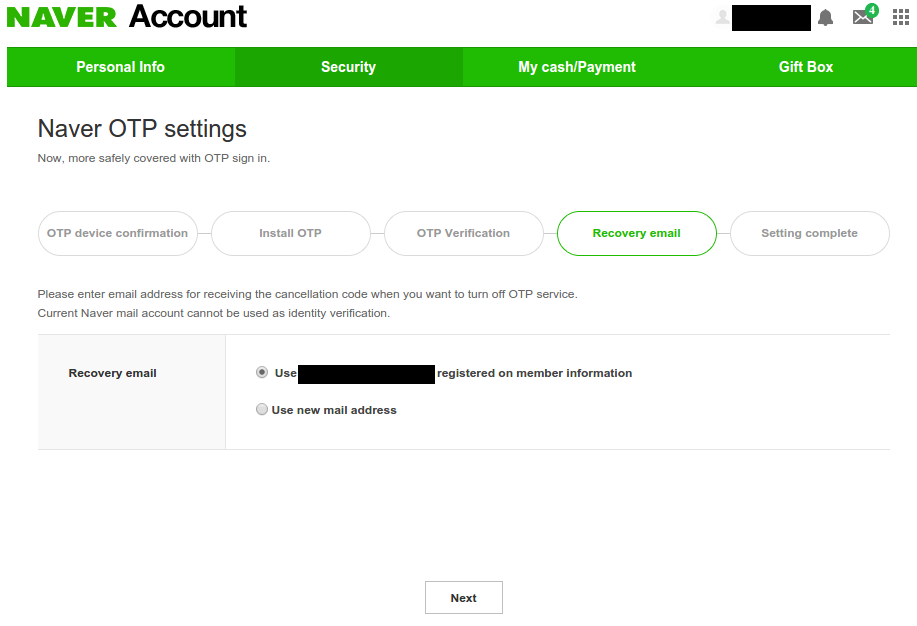
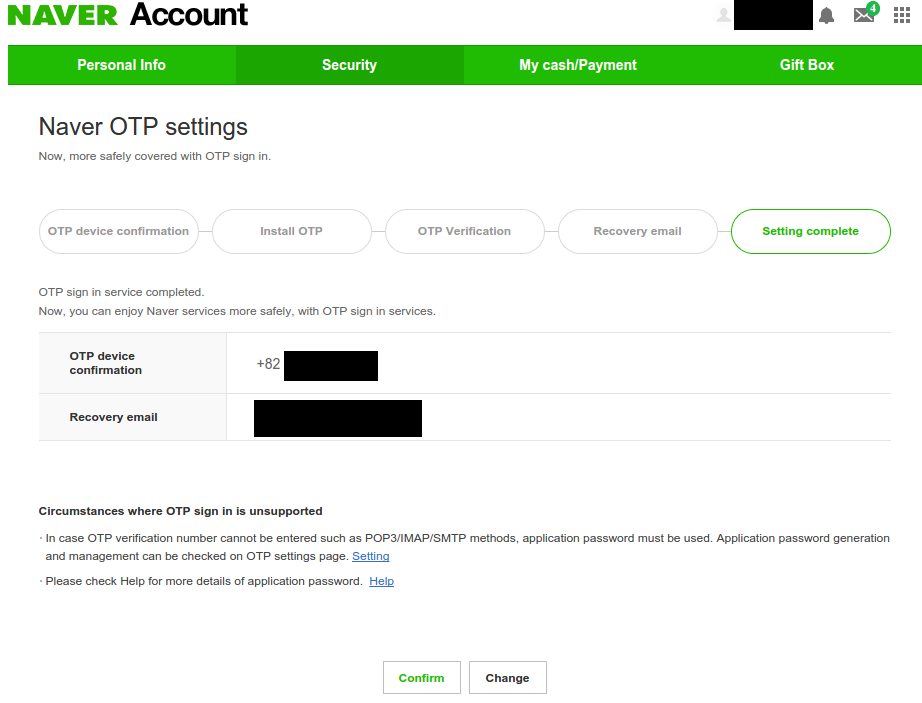
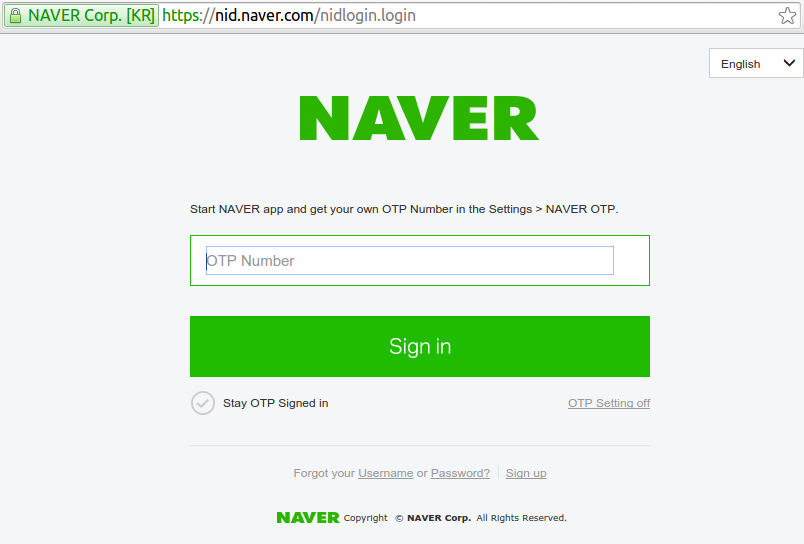
This could be really annoying to do every single time, so dont be a chump. If youre on your personal computer, just be sure to click the "Stay OTP Signed in" checkmark button before entering the code, and you wont need codes for that computer anymore. Set it, and forget it. Enjoy the peace of mind of knowing that no other computer will be able to log-in as you.
---
Hopefully you found this guide helpful. Though, of course, nearly the entire process was in English so really such a guide is a bit unnecessary. Personally, that makes me glad, that Naver expands their English offerings. Navers services really are useful and powerful; not just "Korean Google". I think they could see a lot of expansion and growth by supporting even just a few foreign languages (English / Chinese / Japanese). As I wrote before, Naver Dictionary and Naver Translate can be used fully in English. Lets hope more Naver services continue to become multi-lingual.
Subscribe to:
Posts (Atom)