Showing posts with label naver. Show all posts
Showing posts with label naver. Show all posts
Sunday, August 21, 2016
Download videos from Naver TVcast and other Korean streaming video sites
Download videos from Naver TVcast and other Korean streaming video sites
--- UPDATE - MARCH 2016:
Another site that works is Tube Ripper. I just tried it; worked great, no issues. Thanks to reader +Roms Dungeon at Roms Dungeon for the recommendation.
--- UPDATE - NOV 2015:
Another site that works is http://www.videograbber.net I verified that I was able to download from both Naver TVcast and Naver V. They have both an online downloader tool and an actual program you can download/install on your own computer.
--- UPDATE - SEPT 2015:
Many readers have been asking about how to download videos from Naver V. Please see my newer post here.
--- UPDATE - JULY 2015:
Reader Xiao Long recommends another similar tool, ClipConverter.cc.
I tried it, and can verify that it works well. It may also be even even better than what I recommended below, as you can choose the framerate of the video you want to download. For those of you who demand 1080p, try that instead.
Original post follows below.
Naver runs a sort of YouTube competitor called Naver tvcast (??? tv???), and if youve noticed that some of your favorite K-drama shows seem to have been disappearing from YouTube recently, this is likely why.
You also might have noticed that many of the usual video downloader extensions dont work on tvcast. There are some stand-alone apps that apparently can do so, including atresdownloader and Houlo Video Downloader, and the excellent youtube-dl (a nice illustrated guide to using youtube-dl to download Naver TVcast videos is here), but I bet you want something easier and something non-Windows-specific, and that will work on mobile.
Luckily, theres a simple online downloader that will do it for us. Its called "To Get FLV" and works for a variety of Korean streaming video websites. Heres a look at it in action:

Step 1:
Visit http://2getflv.co.kr/2getflv/ and paste in the URL of the video.
For this example Im using a promo clip of a BBC documentary, located at http://tvcast.naver.com/v/338202

Step 2:
Click ?? ("Search") and in a moment a thumbnail of your video will load below the search-box.
To proceed to downloading, click the button there circled in red above, which reads ? ????? ???? ???????. Dont worry too much about what it says. If youve come this far, it likely wont matter to you. (OK, actually it just says that you agree that the video is for personal use only).

Step 3:
Youll arrive at a simple link page like above. Just like it says, right-click on the second link to "Save as..." and youll download the MP4 file. I had to add the .mp4 extension manually when I tried this but otherwise it plays great.And thats it. This convenient tool apparently works not only with tvcast, but can also download videos from a variety of other Korean sites:
- ??? TVCast (Naver tvcast)
- ??? ??? (Naver Sports)
- ?? ??? (Daum TVpot)
- ???? (Afreeca)
- ???? ??? (Afreeca Sports)
- ?? (mgoon)
- ??? TV (Pandora TV)
- ??? ? (Nate Pann)
I tried a few on the list here, all with success. Id suggest two things to remember:
- If the tool doesnt recognize the video page at first, try using the URL from the Share / Embed / Copy URL feature
- The file may download with a weird extension or no extension. Just manually add .mp4 or .flv where appropriate.

Sunday, August 7, 2016
Download videos from Naver V app
Download videos from Naver V app
--- UPDATE 3 - Dec 2015
Added a section about subtitles.
--- UPDATE 2 - Nov 2015
A reader points out that a Chrome extension called Internet Download Accelerator also works for downloading Naver V videos, so give that a try if the Soshistagram tool doesnt work.
--- UPDATE 1 - Nov 2015
Another site that works is http://www.videograbber.net
I verified that I was able to download from both Naver TVcast and Naver V. They have both an online downloader tool and an actual program you can download/install on your own computer.
Original post begins below.
Naver V live TV, styled simply as V, is a popular new app among K-pop fans for watching live video-blogs from their favorite K-pop artists and idols. If youre ever used Twitters live-vlog app Periscope, then the idea and the interface will already be familiar to you. They broadcast from backstage or dressing rooms or just having random fun, you get an alert on your phone, and you and the other fans open up, watch the video live, and can type public questions in addition to sending them "hearts". It does bring a degree of intimacy and the "live" nature of the broadcast is fun, but once the broadcast is done, its saved and you can rewatch at any time.
 |
| Promo for V |
Of course, one of the most popular questions to this blog lately has been "How can we download the videos from Naver V?" Well, dont worry K-pop fans. Reader Laila Nafisatun came through to help you out, by suggesting this online tool:
? Naver V Downloader ?
from Soshistagram
Video
With this online tool, you can download any "V" video you want, simply by copy/pasting the link. In fact, they already have some of the most popular videos already listed, ready for simple download. Best of all, you can download the videos in a variety of sizes/resolutions, so you crazy fans who need every K-pop video in 1080p eye-bleeding clarity, your day is here!

In the example above, I just pasted the URL (http://www.vlive.tv/video/1981) for a video of hot girl group 4minute on their way to a fan meeting. Just right-click and "Save as..." to download. If that doesnt work, just click them, and when the video loads in your browser, right-click the video and "Save as..." as Ive shown below:

Ta da. Super simple.
Subtitles
Note that this site also checks the video for subtitles, and lets you download the subtitle file directly and in any languages that are available. That 4minute video from above, as you can see, did not include any subs, but here is one that does:

You may run into a problem with the subtitles. Thats because Naver "V" videos use a special new HTML5 format for subs called WebVTT. So your subtitle file will be a .vtt file that, as far I can tell, is unsupported by most desktop video playing apps. To use the file, you will need to convert it to a more common format, such as .srt. You can do this manually with the find-replace function on any text editor, or try a subtitle converter application, such as this or this.
UPDATE : As you can see below, Soshistagram now includes an option to download subtitles in .SRT format. Seriously, show some love for Soshistagram.

Final thoughts
Overall, the Soshistagram tool works great. The V site prevents you from accessing the streams directly from desktop. I had tried a couple of user-agent-spoofing extensions with not much luck. This tool seems to get the links for the streams and provide them directly. Thats good, because trying to right-click and "Save as..." from the links only downloads the .m3u8 playlist file, but you need the access code in the URL to get the stream working, so the playlist file is useless itself.
For more on Naver V, check it out on Android here or iTunes here.
Thanks to Soshistagram (SOSHI + Instagram ... SOSHI = So-Nyeo-Shi-Dae = ???? = "Girls Generation") for providing this highly-desired feature. And if you know of any other similar tools, let me know in the comments.
Happy downloading.
Monday, August 1, 2016
Enable Two step verification for your Naver account
Enable Two step verification for your Naver account
Today Ill walk you through a brief tour of enabling two-step protection on your Naver account.
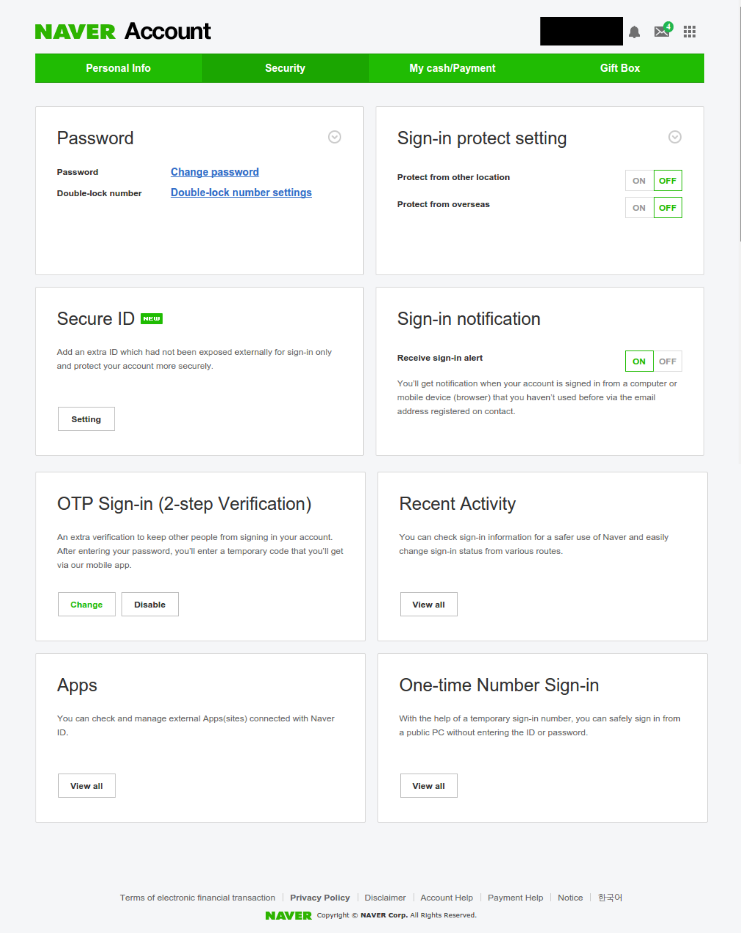
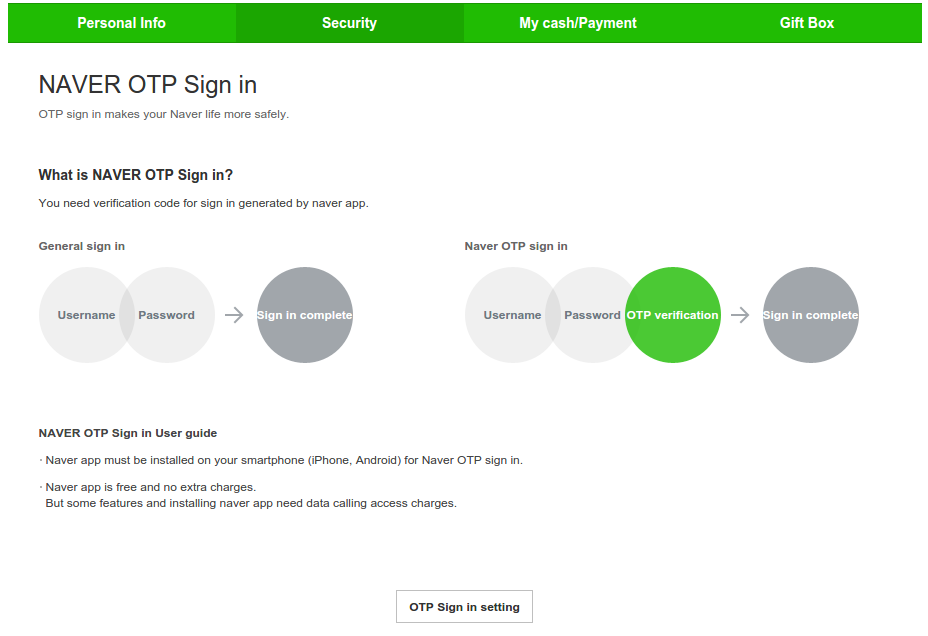
Two-step verification, or Two-factor authentication (i.e. getting a code on your phone to sign-in), adds an important layer of security to your account. I have this set-up on my Google account. I didnt notice this until recently, but Naver (???) also lets you enable this security feature, though they refer to it as OTP. With all the hacking stories out there, its useful to "set it and forget it." Its pretty simple if youre already familiar with 2-step authentication, with one main difference: the Naver app itself is used for generating the codes. But well get to that.
Creating a Naver Account
The brilliant thing is that 90% of all this process can be done in English. Creating a Naver account and editing all major account settings on Naver can all be done in English (and Chinese), even though most Naver function beyond that are only in Korean. No Alien ID Numbers (??? ?? ??) or passport numbers are needed; but you will need a mobile phone to receive a verification code. I was required to enter a Korean (+82 prefix) phone number, but when signing-up from abroad, you can choose from an international country drop-down list.
---
Enabling the Protection
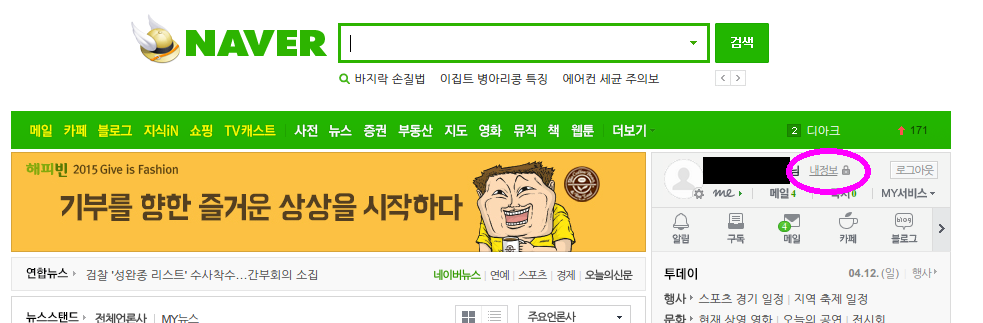
Once youve created your Naver account (and it really is super simple), we can enable the Two-step verification.
Part of the reason may be this:
The malicious application attacks a smartphone to steal personal information in the phone by pilfering authentication SMSs when the person uses an e-commerce payment service. [Korea Bizwire]
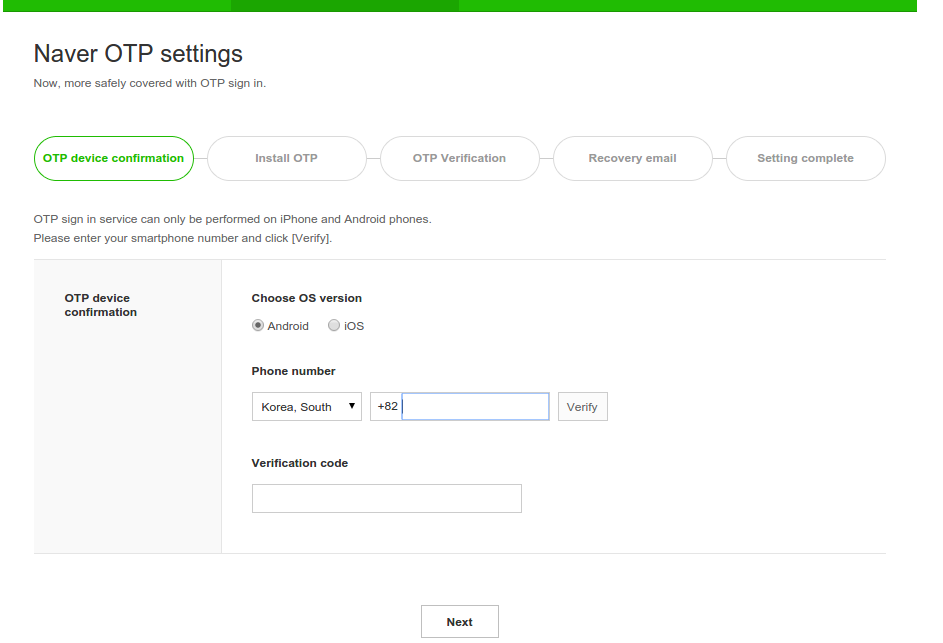
Note also here that the phone number you use here does not have to be the same number associated with your account (the number you gave when signing-up with Naver). For example, I didnt want to install the bloated Naver app, so here I used the number of a family member who does have the app. It worked just fine, though of course Ill need that persons phone when logging-in on an unknown/untrusted computer. Input the number, Naver will send you an SMS code, and input that code here.
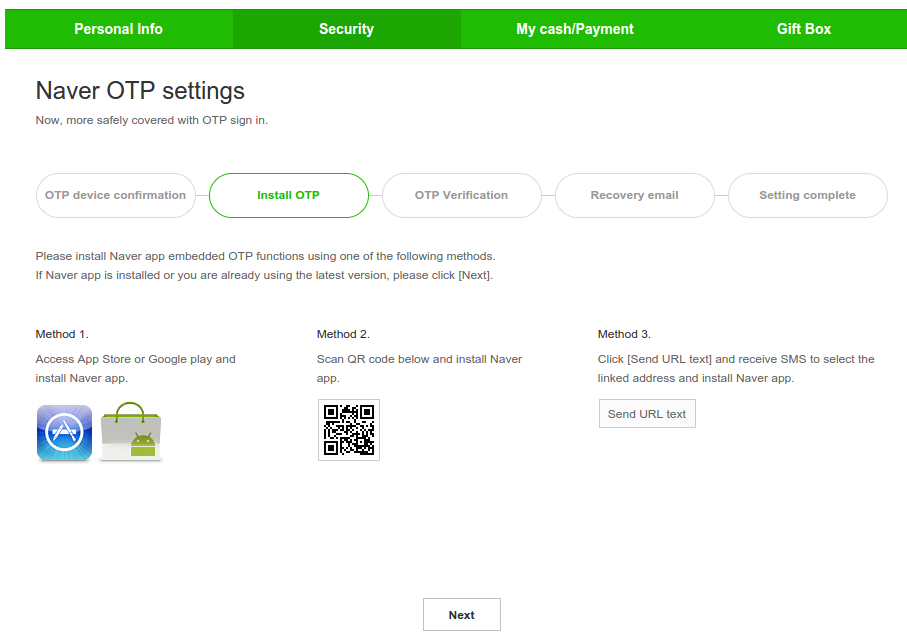
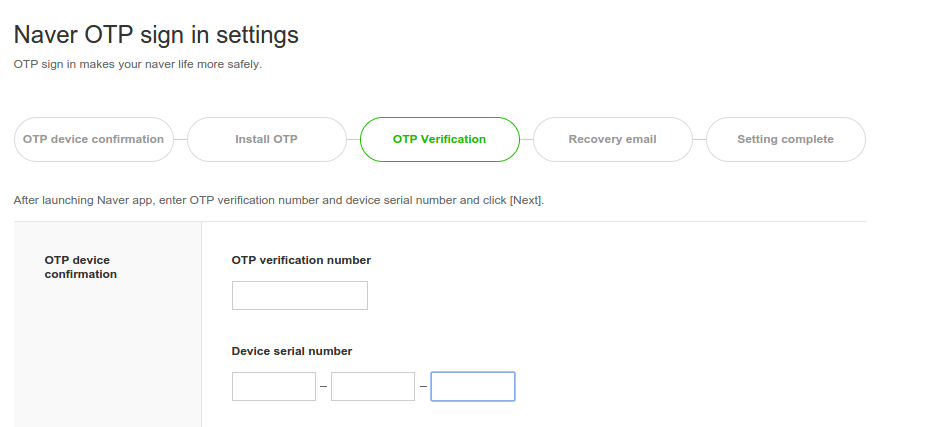
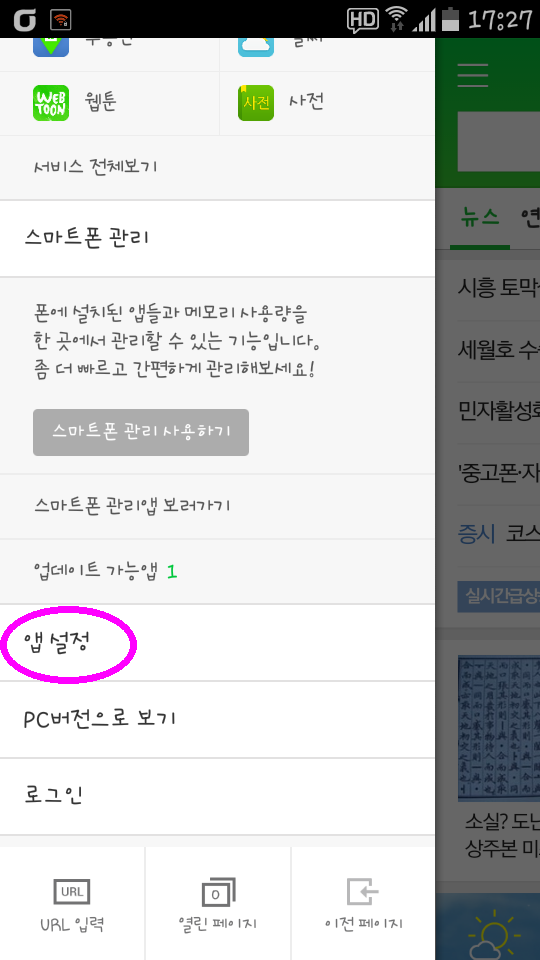
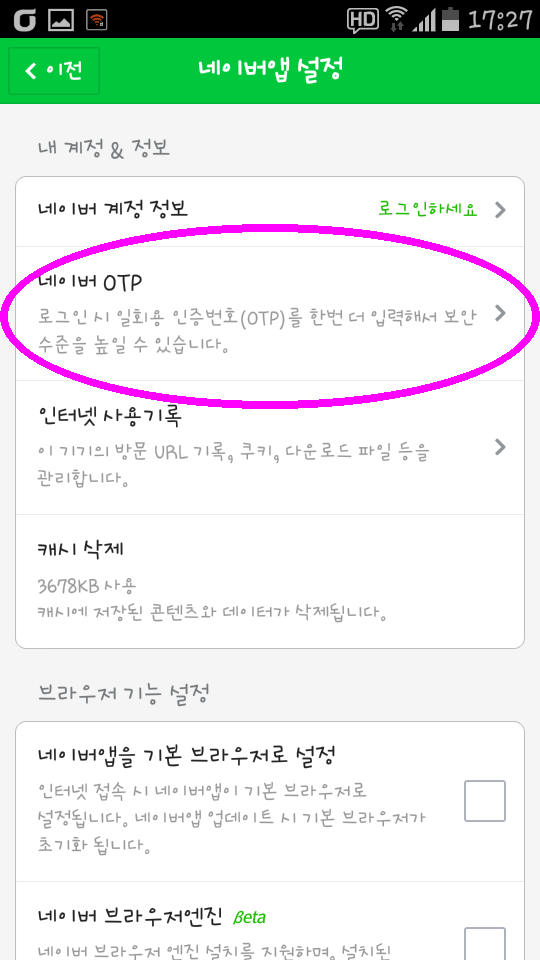
If youre not sure where to get this code, Ill show you now.
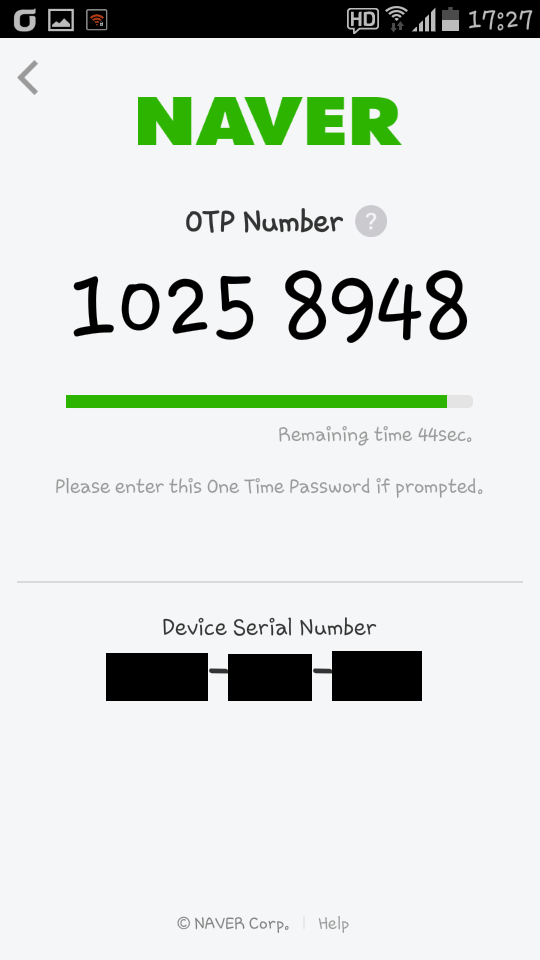
Now back to the set-up:
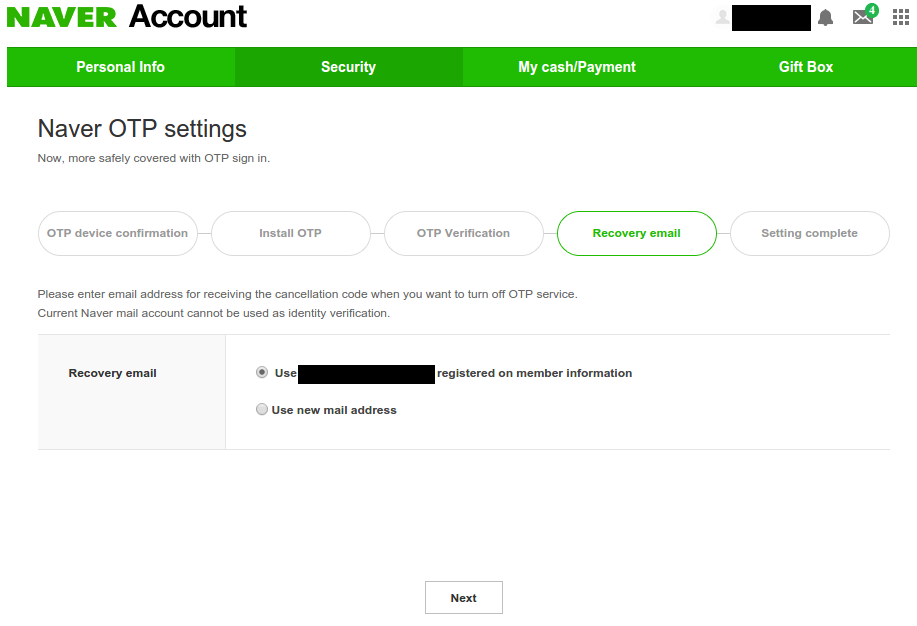
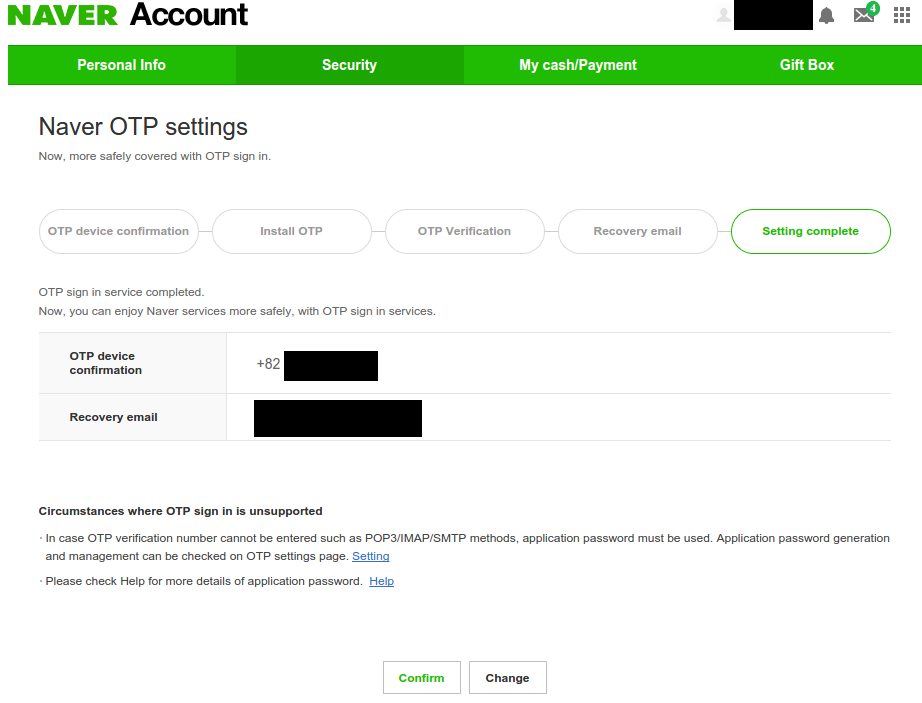
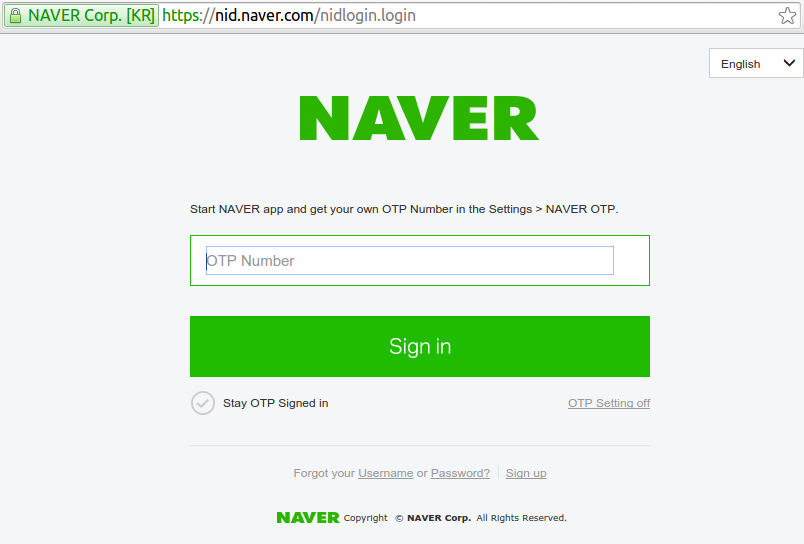
This could be really annoying to do every single time, so dont be a chump. If youre on your personal computer, just be sure to click the "Stay OTP Signed in" checkmark button before entering the code, and you wont need codes for that computer anymore. Set it, and forget it. Enjoy the peace of mind of knowing that no other computer will be able to log-in as you.
---
Hopefully you found this guide helpful. Though, of course, nearly the entire process was in English so really such a guide is a bit unnecessary. Personally, that makes me glad, that Naver expands their English offerings. Navers services really are useful and powerful; not just "Korean Google". I think they could see a lot of expansion and growth by supporting even just a few foreign languages (English / Chinese / Japanese). As I wrote before, Naver Dictionary and Naver Translate can be used fully in English. Lets hope more Naver services continue to become multi-lingual.
Subscribe to:
Posts (Atom)