Showing posts with label your. Show all posts
Showing posts with label your. Show all posts
Tuesday, August 23, 2016
AdBlock a Firefox memory hog Not if you slim your filters!
AdBlock a Firefox memory hog Not if you slim your filters!
There are lots of articles out there talking about what a memory hog Adblock Plus is. And in my experience, especially on older machines, theyre right, if you leave it subscribed to a bunch of filter lists.
But have you ever actually looked at those lists? EasyList in particular is a huge collection of blocking rules for sites you probably will never visit. I use Firefox on a computer with only 1GB of RAM, and it really slowed me down.
So I took a look at my situation and realized: I mainly visit the same handful of sites over and over. Do I really need to waste that precious memory having Adblock check for ads from half-the-web?
So heres what I did:
- Installed Adblock Edge, because I can block whatever I want, and the custom filter lists I create with it sync over to my other Firefox computers
- Copied the filters from EasyList from sites I use frequently (a certain Tube site, a certain Centralized Comedy site, and, um, *ahem* a certain rodent site) and added them to my filter list.
- Spent a few days browsing in my usual habits, making note to spend just a minute or two on each site adding my own filters, by just right-clicking on the ads directly. The wildcard character comes in handy here.
- Done!
Whats the point of saying all this?
This:
 |
| Screenshot of Firefox memory usage. Highlighted portion is Adblock Edge ID. |
With five tabs open, Adblock Edge is taking up just half a megabyte of memory, and I have no ads visible. HALF A MEGABYTE, people.
They key here is numeric simplicity. Even a simple blocking filter like "*/ads/* removes tons of junk. I have maybe 200 active filters now, compared to the thousands that pile-up with those subscriptions.
Of course, I do use some simple filter subscriptions, like the Facebook Annoyances remover. Plus, there might be some sneaky beacons or trackers, so I have Ghostly and NoScript take care of that (you might also give Disconnect a try, though I found it interfered with sites often enough to be annoying.)
Id also given uBlock a try as a potential ABE replacement, and I liked it well-enough, and if you always use the same computer, go for it. But, at the moment, it has no syncing feature (and I respect that, for its goal of being as light-weight as possible). As Im "rolling my own" custom filters, I dont want to have to be blocking the same things twice over. ABEs use of Firefox Sync ensures that what I block at home carries over automatically to the work computer.
I know that some people just want simplicity, and using EasyList and the other filter subscriptions is great for that, especially for their auto-updating nature. I get that, I really do. Even I myself sometimes take a poke back at EasyList for updated YouTube ad-blocking strings. If I had the hardware power, maybe Id use the filter subscriptions too. But for people complaining about high memory usage, theres really no excuse for so much bloat. Slim it down and your browsing will speed up.

Tuesday, August 9, 2016
Display your Blogger posts on a Google Map
Display your Blogger posts on a Google Map
In this post, well make a full-size Google Map that contains all the location-tagged posts from your Blogger feed. It will display full entries on the map.
If youre looking for a more simple map page that links to the posts, or for putting a map in your blogs sidebar as a widget, please see my other post.
UPDATE 2015-09
I edited the HTML file code below. Readers on Twitter alerted me to the fact that the RSS URL for blogs only goes so far back in time, meaning many older location-tagged posts were missing from the map. Ive replaced that URL format with another that seems to stretch all the way back.
---
I keep a travel blog for friends and family, and usually tag those Blogger posts with my location. Usually, this just adds a location tag to the bottom of the post, with a link you can click to see that spot on a map. Pretty boring. But heres a nice way to plot all your geocoded (location-tagged) Blogspot blog posts onto a single Google Map. Great way to revisit old posts and visually, geographically see where and when you were.
For example, here is the map with location-tagged posts from this blog. Just click each one to view the corresponding entry in its entirety. All of the entries appear similarly.
 |
| Screenshot of my Blog Map |
Step 1 - Edit the code
Copy the code below and paste it into a plain-text document.<!DOCTYPE html>
<html>
<head>
<meta name="viewport" content="initial-scale=1.0, user-scalable=no">
<meta charset="utf-8">
<title>GeoRSS Layers</title>
<style>
html, body, #map-canvas {
height: 100%;
margin: 0;
padding: 0;
}
</style>
<script src="https://maps.googleapis.com/maps/api/js?v=3.exp&signed_in=true"></script>
<script>
function initialize() {
var myLatlng = new google.maps.LatLng(49.496675,-102.65625);
var mapOptions = {
zoom: 4,
center: myLatlng
}
var map = new google.maps.Map(document.getElementById(map-canvas), mapOptions);
var georssLayer = new google.maps.KmlLayer({
url: http://www.blogger.com/feeds/blogId/posts/default?max=500&max-results=500
});
georssLayer.setMap(map);
}
google.maps.event.addDomListener(window, load, initialize);
</script>
</head>
<body>
<div id="map-canvas"></div>
</body>
</html>
The bold URL above needs to be replaced with whatever GeoRSS enabed feed you want to use.
Luckily, Blogger blogs already have this feature enabled. Thanks, Google. So if youre using Blogger, youll just need your blogId number. You can get this by simply logging into Blogger and visiting your blogs posts lists. Look up in the URL and youll see something like "blogID=48574832938473847". Copy this number and replace "blogId" in the code above with this number.
Save it as an HTML file.
Next, you need to replace blogId in that URL with your own Blogger blog ID number.
The important thing is that the file must be accessible directly, so upload it to your own webserver, or your Dropbox public folder, or even to Google Drive. After youve uploaded the file to Google Drive, get its "shareable link". But were not done just yet. That shareable link will only open the file in the Google Drive viewer; not open the file directly. To do that, we need to edit the URL a bit. Copy just the number from your shared URL, and tack it on to the end of this string:
http://googledrive.com/host/xxxxxxxxxxxxxxx
That should be it! Youve now got a direct link to your map file.
Now you could just, for example, have a link on your blog, perhaps as a "Page" on your blog, that leads to that URL, as that is now your Blog Entries Map. But you might also want to embed the map on a page on your blog. In that case:
With Google+ all but dead, I hope Google gives some more love to Blogger. Its a bit bothersome to have to depend on these workarounds. This is why I actually prefer Naver Blogs. Its very easy to add a post map. Just wish they had an English interface.
Luckily, Blogger blogs already have this feature enabled. Thanks, Google. So if youre using Blogger, youll just need your blogId number. You can get this by simply logging into Blogger and visiting your blogs posts lists. Look up in the URL and youll see something like "blogID=48574832938473847". Copy this number and replace "blogId" in the code above with this number.
Save it as an HTML file.
Next, you need to replace blogId in that URL with your own Blogger blog ID number.
Step 2 - Upload the File
Now you need a host for this HTML file. Sadly, I dont think you can just paste this code into a Blogger entry page. Maybe you could edit the template but Im not a coding genius here.The important thing is that the file must be accessible directly, so upload it to your own webserver, or your Dropbox public folder, or even to Google Drive. After youve uploaded the file to Google Drive, get its "shareable link". But were not done just yet. That shareable link will only open the file in the Google Drive viewer; not open the file directly. To do that, we need to edit the URL a bit. Copy just the number from your shared URL, and tack it on to the end of this string:
http://googledrive.com/host/xxxxxxxxxxxxxxx
That should be it! Youve now got a direct link to your map file.
Now you could just, for example, have a link on your blog, perhaps as a "Page" on your blog, that leads to that URL, as that is now your Blog Entries Map. But you might also want to embed the map on a page on your blog. In that case:
Step 3 - Embed (optional)
Just create a new Blogger page, switch to HTML editing, and paste this code, changing the URL to your files location:<iframe height="400px" width="100%" frameBorder="0" scrolling="no"
src="http://www.yourhost.com/yourfile.html">
</iframe>
With Google+ all but dead, I hope Google gives some more love to Blogger. Its a bit bothersome to have to depend on these workarounds. This is why I actually prefer Naver Blogs. Its very easy to add a post map. Just wish they had an English interface.
Saturday, August 6, 2016
Displaying your Blogger posts location tag on mobile templates other than Dynamic Views
Displaying your Blogger posts location tag on mobile templates other than Dynamic Views
Vanishing Location Information on Mobile
Im a big fan of tagging my Location on Blogger posts, especially on my travel blog, where I review restaurants, document my trips with tips for other travellers, etc. Blogger adds your location tag to the post in the post footer by default, which is great, but more and more people are browsing blogs on their mobile phones rather than the desktop.

As it stands, it seems if your Blogger blog is using the "Dynamic Views" template, the posts location information will be shown on both the desktop and the mobile view, including the address being a clickable link to a Google Map.
But I recently noticed that this is not the case for any other template. I tested out Bloggers other templates (Simple, Picture Window, Awesome Inc, Watermark, Ethereal, Travel, all of them!) and noticed that the location tag is not included when using these templates on mobile.
Heres a demonstration. Heres a test post I made, location tagged at beautiful Bass Lake. These are screen-shots from my phone. Notice the location info displayed here in "Dynamic Views" layout:

Great, I like that a lot. But what if Im not a fan of Dynamic Views, for one because it takes longer to load?
Heres the same post, with the blog template switched to "Simple":

As you can see, the location information is gone. How can we get it back?
A possible solution?
This can be fixed by adding a short bit of code to your blogs template, telling it to display the location on mobile. However, in my tests, this method only works:- on SOME templates ("Simple" but not "Awesome Inc" for example) and
- seems to only work on blogs that do not use Google+ integration (i.e. still use the old Blogger profile)
Update: I heard from others that this does work on all templates, so give it a try!
Anyway, to try this, edit your blogs template HTML by going to (duh) Template -> Edit HTML.*** First make a back-up of your blogs template, just in case something goes wrong ***
Now, in the HTML editor, you need to find this tag:
<b:includable id=mobile-post var=post>This will contain the code for how your blog is displayed on mobile devices. You may or may not need to click the little arrow on the side to expand this entry.
Now all you have to do is add this bit of code to the spot where you want the Location displayed. For example, I like having mine displayed in the post footer, so I search for this (it was about 50 lines of code down from the mobile-post tag in mine):
<div class=post-footer-line post-footer-line-1>Now then, right below this line, add in the special location-displaying code:
<span class=post-location>And thats it! Now I save the template, and when I refresh my blog post, I see this:
<b:if cond=data:top.showLocation> <b:if cond=data:post.location>
<data:postLocationLabel/> <a expr_href=data:post.location.mapsUrl target=_blank><data:post.location.name/></a> </b:if> </b:if> </span>

The location details are back! Success!
Helpful Notes
If, like me, you are not a coder in any way at all, please take note: your blog HTML template is going to have multiple entries of the kind <div class=post-footer>. I wont even pretend to know what each of them does or why they all exist. All I can tell you is that this will only work if you put it in the section under that <id=mobile-post var=post> tag from above.Also, as I mentioned above, Ive had limited success, depending on the particular blog template. Id love to hear your experiences with this.
Credit
Credit for the majority of this idea goes to whose blog post here gave me the code used in this trick. I appreciate his support in trying to solve this.P.S. This post is location tagged at beautiful Napa Valley, California. If the code works, you will hopefully see this post tagged (if youre reading on mobile) as such.
Monday, August 1, 2016
Enable Two step verification for your Naver account
Enable Two step verification for your Naver account
Today Ill walk you through a brief tour of enabling two-step protection on your Naver account.
Two-step verification, or Two-factor authentication (i.e. getting a code on your phone to sign-in), adds an important layer of security to your account. I have this set-up on my Google account. I didnt notice this until recently, but Naver (???) also lets you enable this security feature, though they refer to it as OTP. With all the hacking stories out there, its useful to "set it and forget it." Its pretty simple if youre already familiar with 2-step authentication, with one main difference: the Naver app itself is used for generating the codes. But well get to that.
Creating a Naver Account
The brilliant thing is that 90% of all this process can be done in English. Creating a Naver account and editing all major account settings on Naver can all be done in English (and Chinese), even though most Naver function beyond that are only in Korean. No Alien ID Numbers (??? ?? ??) or passport numbers are needed; but you will need a mobile phone to receive a verification code. I was required to enter a Korean (+82 prefix) phone number, but when signing-up from abroad, you can choose from an international country drop-down list.
---
Enabling the Protection
Once youve created your Naver account (and it really is super simple), we can enable the Two-step verification.
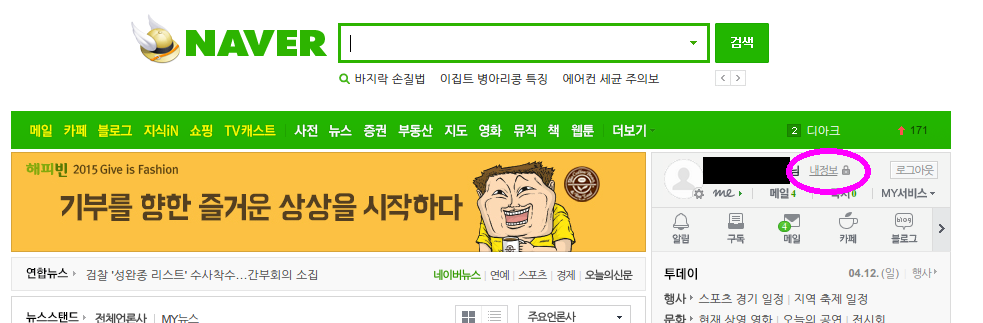
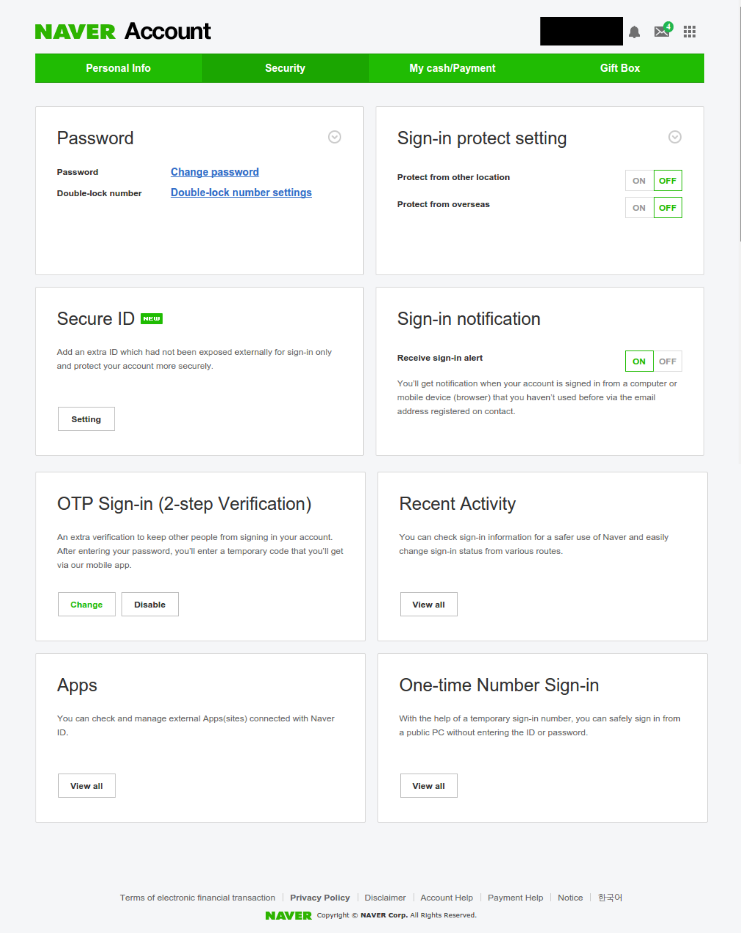
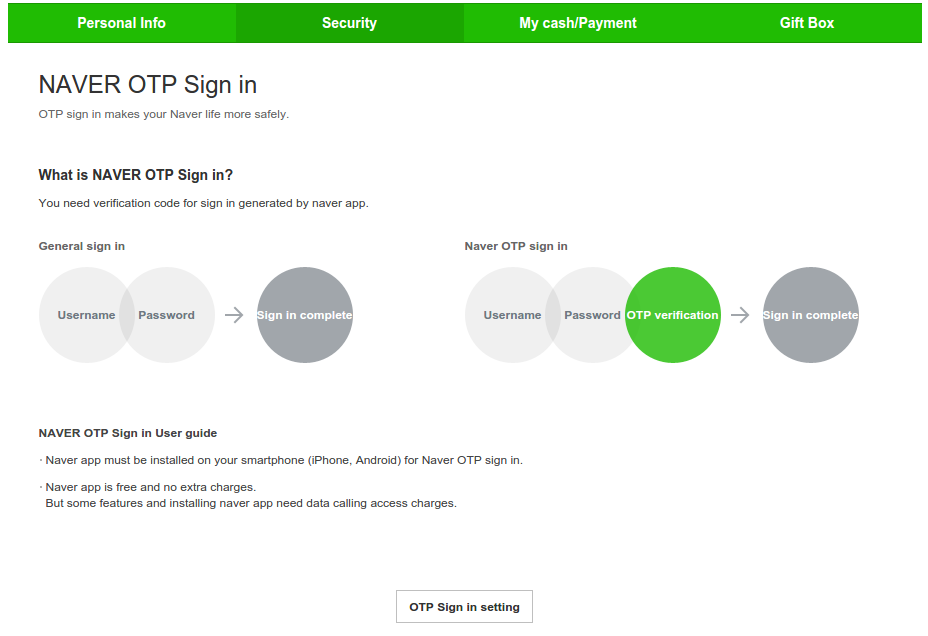
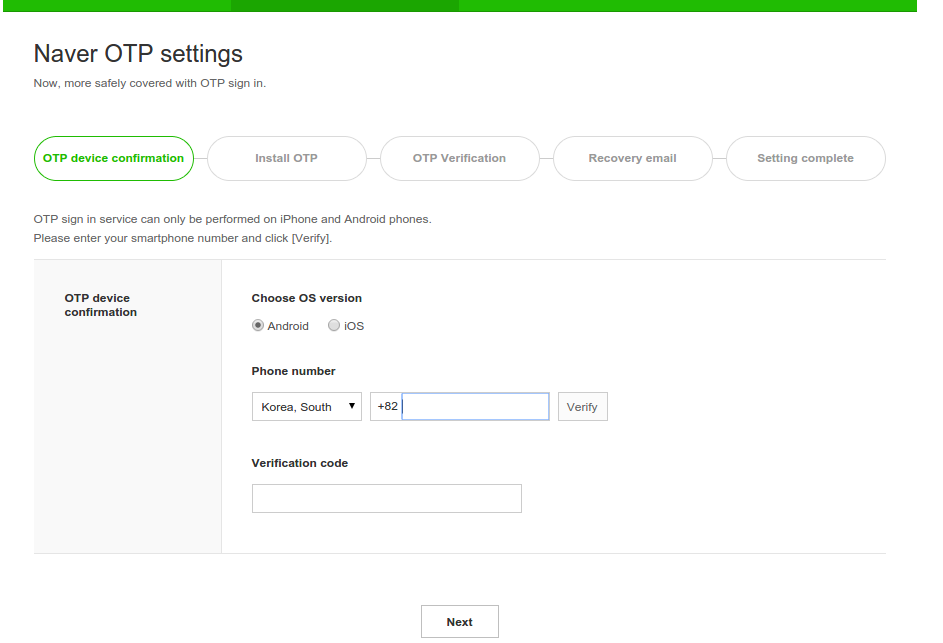
Part of the reason may be this:
The malicious application attacks a smartphone to steal personal information in the phone by pilfering authentication SMSs when the person uses an e-commerce payment service. [Korea Bizwire]
Note also here that the phone number you use here does not have to be the same number associated with your account (the number you gave when signing-up with Naver). For example, I didnt want to install the bloated Naver app, so here I used the number of a family member who does have the app. It worked just fine, though of course Ill need that persons phone when logging-in on an unknown/untrusted computer. Input the number, Naver will send you an SMS code, and input that code here.
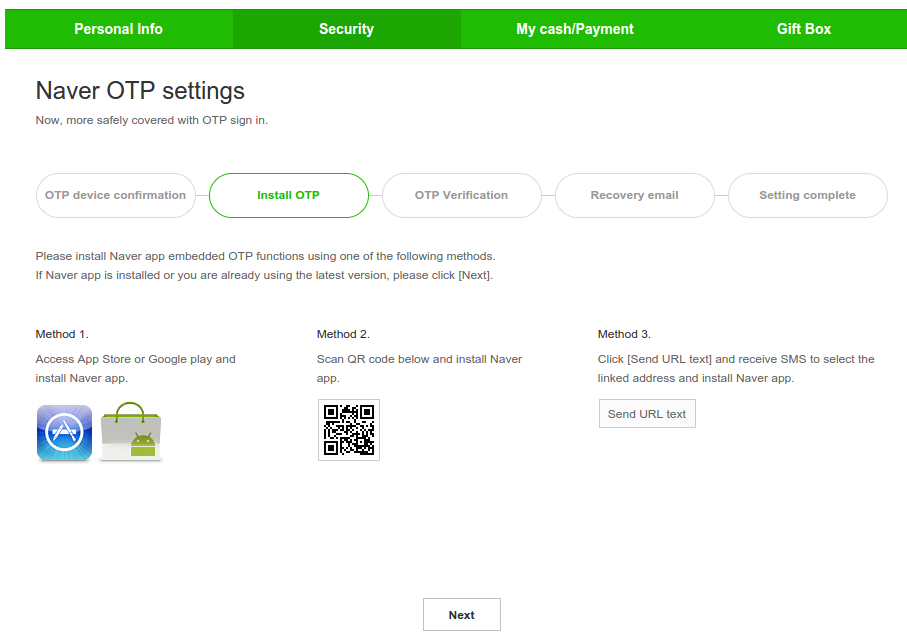
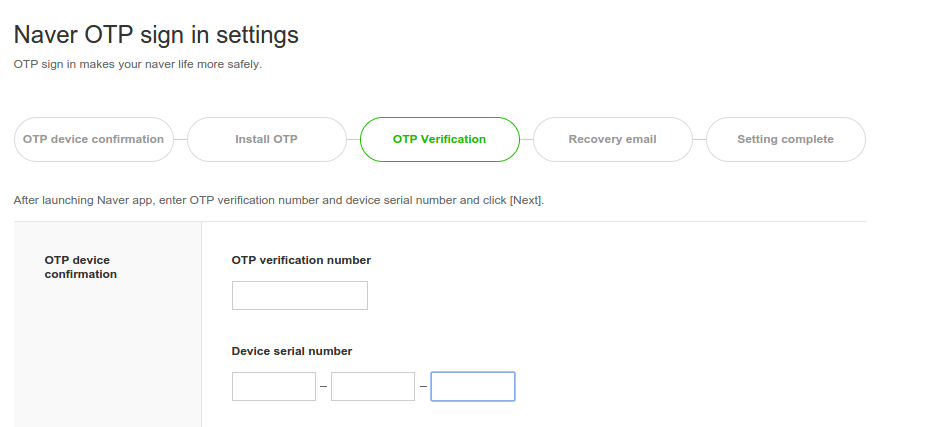
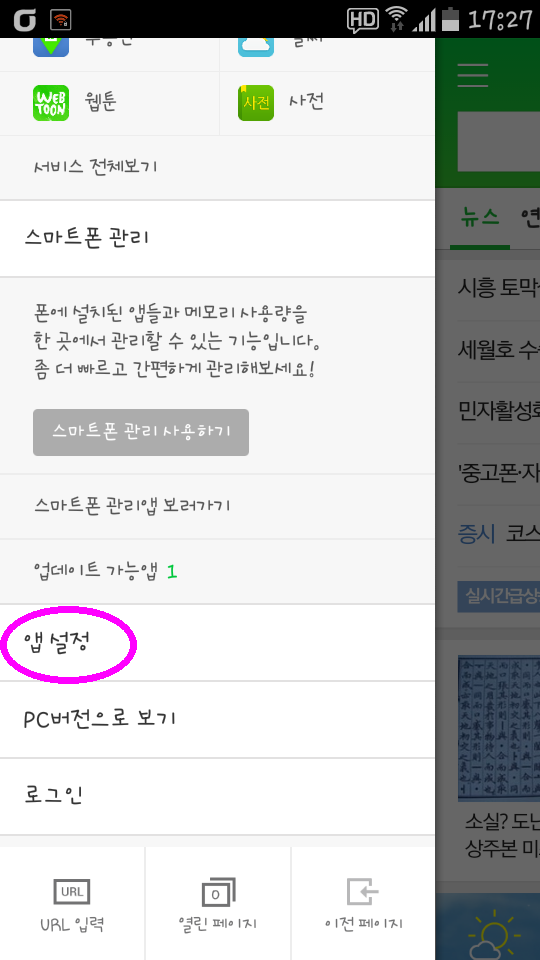
If youre not sure where to get this code, Ill show you now.
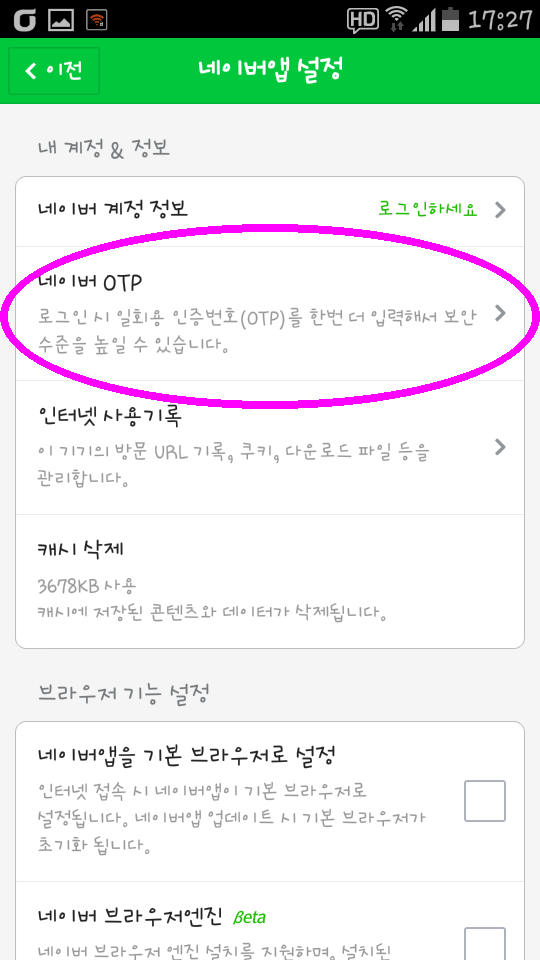
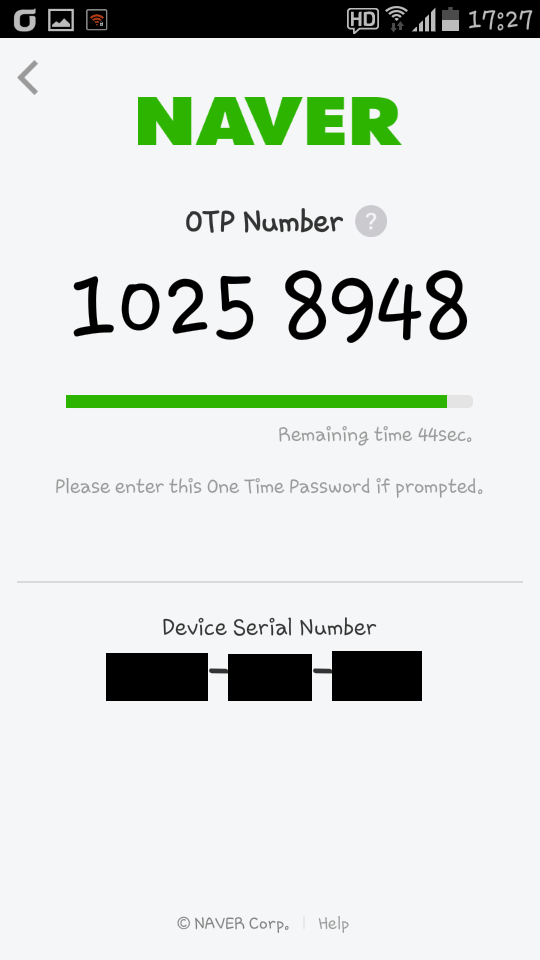
Now back to the set-up:
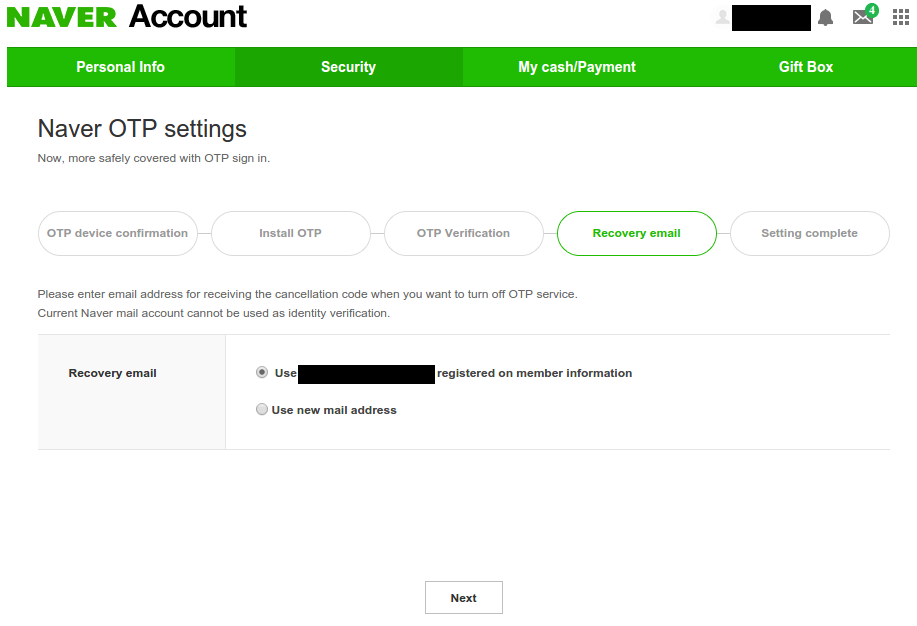
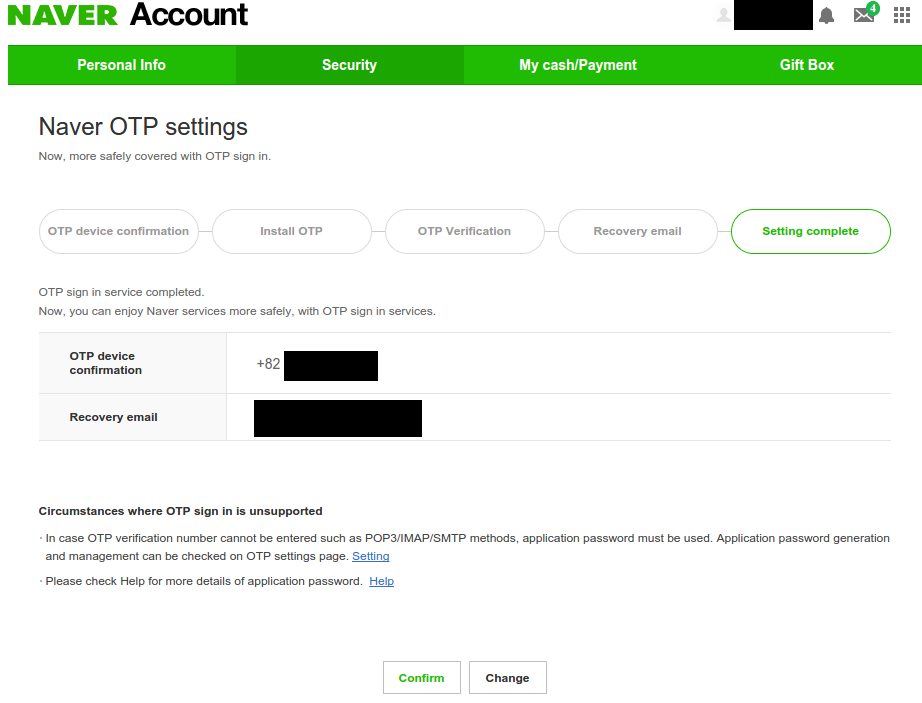
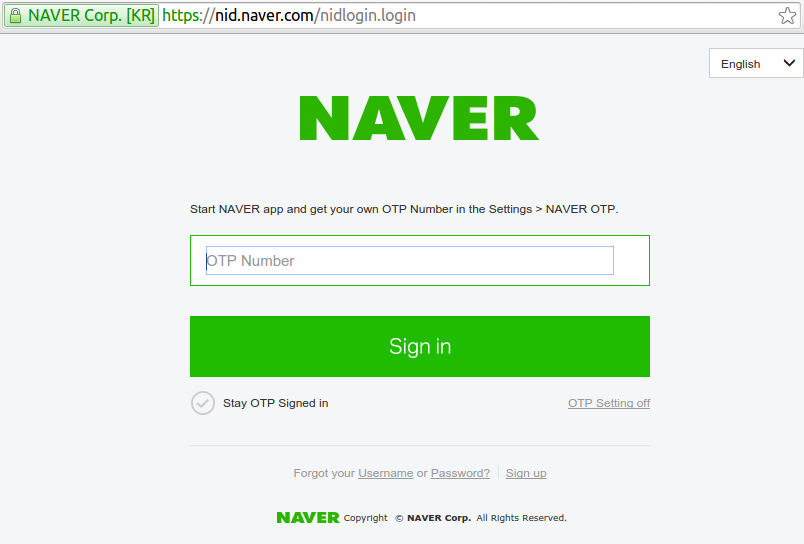
This could be really annoying to do every single time, so dont be a chump. If youre on your personal computer, just be sure to click the "Stay OTP Signed in" checkmark button before entering the code, and you wont need codes for that computer anymore. Set it, and forget it. Enjoy the peace of mind of knowing that no other computer will be able to log-in as you.
---
Hopefully you found this guide helpful. Though, of course, nearly the entire process was in English so really such a guide is a bit unnecessary. Personally, that makes me glad, that Naver expands their English offerings. Navers services really are useful and powerful; not just "Korean Google". I think they could see a lot of expansion and growth by supporting even just a few foreign languages (English / Chinese / Japanese). As I wrote before, Naver Dictionary and Naver Translate can be used fully in English. Lets hope more Naver services continue to become multi-lingual.
Sunday, July 31, 2016
Follow allkpop com with these RSS feeds never miss your K pop fix
Follow allkpop com with these RSS feeds never miss your K pop fix
Everyone knows Im a big fan of RSS feeds. Last year, the K-pop fansite Allkpop removed their main RSS feed as part of their site redesign project. But dont worry, K-Pop fans, you can still follow them with the simplicity and non-clutter of RSS in a few other ways.
Here are some RSS subscription-ready links you can use to subscribe to their content:
Video uploads from AllKpops YouTube channel:
http://gdata.youtube.com/feeds/api/users/allkpop/uploads
Posts from their Facebook wall:
https://www.facebook.com/feeds/page.php?format=rss20&id=142273450007
Posts from their Tumblr:
http://allkpop.tumblr.com/rss
Results from Google News (surprisingly accurate at pulling-in Allkpop articles):
http://news.google.com/news?hl=en&gl=us&q=allkpop&um=1&ie=UTF-8&output=rss
Posts shared to Reddit from the Allkpop domain:
http://www.reddit.com/domain/allkpop.com/.rss
I would actually be shocked if there are any K-Pop fans that use such an old-school technology like RSS, but God bless ya if you do, chingu.
Saturday, July 30, 2016
Download Free Photo Resizer HD Shrink Your Photos
Download Free Photo Resizer HD Shrink Your Photos
Technological development can not be dammed. As well the smartphones camera. first smartphone has a 5 MP camera already looks cool, then expand again into 8 MP to date to 13 MP and will continue to evolve.
Megapixel effect on the dimensions of the captured images. for example, a smartphone with a 12 MP camera, then the dimension of the resulting photo is 4000 x 3000 px. Certainly a very large size to be stored in a smartphone. (Read: Reduce Your Size Photo with JPEGmini For PC)
 |
| Capture Photo Resizer HD |
To shrink your size photos, Photo Resizer HD is the best solution. Photo Resizer HD is simple and easy to use application for resizing single and multiple images.
With this app you can resize/shrink your photos before sending them by Email or uploading them to Facebook , Twitter or any other social services.
Features Photo Resizer HD
Best features from Photo Resizer HD for you:
- Batch resize multiple photos. (If you want to batch resize multiple images , you have to select them in the standalone gallery app and then share them to "Photo Resizer HD")
- Photo Editing Tools – Rotate, Crop, Horizontal and Vertical Flip.
- Sharpen photos after resize
- Configurable size and quality
- Keep EXIF tags
- Save reduced images to SD card
- Share photos to other apps.
Link Download
You can download Photo Resizer HD at Google Play or you can following link bellow:
- Photo Resizer HD Version 1.1.2
File Information
- File name: Photo Resizer HD
- Size: 951KB
- Updater: August 7, 2014
- Author: mp4android
- OS Requiment: Android 2.3.3 or Up
- License: Freeware
How To Use
You can batch resize multiple photos with hoto Resizer HD
- Open standalone gallery app or another image browser
- Select images and share them to “Photo Resizer HD”
- Set parameters and press “Shrink” button to resize your photos.
Recommendation article for you:
- Download BBM3 For Android
- Donwload Indonesia Live TV Free
- Download PES 2015 Single Link Full Version
- Download New BlueStacks App Player
- Download Driver Samsung NP-NC 108 For All Windows Version
Thanks For Visiting. Enjoy!
Subscribe to:
Posts (Atom)