Showing posts with label from. Show all posts
Showing posts with label from. Show all posts
Saturday, August 27, 2016
First look at the WeMos D1 Arduino compatible ESP8266 Wifi Board from Banggood com
First look at the WeMos D1 Arduino compatible ESP8266 Wifi Board from Banggood com
This video take a look at the WeMos D1: a Wi-Fi enabled Arduino compatible board based on the ESP8266 chip. The price of it is so tempting, less than 9$.

The ESP8266EX chip that the WeMos D1 board uses offers:
• A 32 bit RISC CPU running at 80MHz
• 64Kb of instruction RAM and 96Kb of data RAM
• 4MB flash memory! Yes that’s correct, 4MB!
• Wi-Fi
• 16 GPIO pins
• I2C,SPI
• I2S
• 1 ADC
--------------------
CODE OF THE PROJECT
--------------------
http://educ8s.tv/arduino-esp8266-tutorial-first-look-at-the-wemos-d1-arduino-compatible-esp8266-wifi-board/

Friday, August 26, 2016
Export Emails within a Date Range from Exchange 2010
Export Emails within a Date Range from Exchange 2010
Today I had to do this to assist with an email audit for a government agency. Below are the steps you need to follow to make this happen. The TechNet article leaves out a very important step that I have included for you below.
1. Open up the Exchange Management Shell and enter the following command: New-ManagementRoleAssignment –Role “Mailbox Import Export” –User "DOMAINUSERACCOUNT"
**NOTE: Now close the EMS and reopen it. You have to do this because the roles for the user logged in are loaded when the EMS is started.
2. Use this command to export your email date range and the location where you want to save it: New-MailboxExportRequest -Mailbox "SAMPLE USER" -ContentFilter {(Received -lt 01/01/2012) -and (Received -gt 03/31/2012)} -FilePath "SERVEREXPORTSSAMPLE_USER.pst"
Depending on the size of the users email you may get a file rather quickly or you may get a message from the EMC that the job is queued and will be filled when it is completed the search and export process.
What lead me here was the error "The Term New-MailboxExportRequest is not recognized as the name of a cmdlet, function, script file, or operable program".
The steps above will avoid this error and get you exactly what you need from the email box.
If you just want to dump the entire mailbox use this: New-MailboxExportRequest -Mailbox "SAMPLE USER" -FilePath "SERVEREXPORTSSAMPLE_USER.pst"
Tuesday, August 23, 2016
Control Arduino Genuino 101 onboard LED from Android iOS via Bluetooth Low Energy BLE
Control Arduino Genuino 101 onboard LED from Android iOS via Bluetooth Low Energy BLE
From Arduino IDE with Arduino/Genuino 101 board installed, its a CallbackLED example to test Arduino/Genuino 101 Bluetooth Low Energy (BLE) capabilities to turn on and of the LED connected to Pin 13 from a Android or iOS.

In Arduino IDE, open and download the CallbackLED example:
- File > Examples > CurieBLE > CallbackLED
CallbackLED.ino
/*
 Copyright (c) 2015 Intel Corporation. All rights reserved.

 This library is free software; you can redistribute it and/or
 modify it under the terms of the GNU Lesser General Public
 License as published by the Free Software Foundation; either
 version 2.1 of the License, or (at your option) any later version.

 This library is distributed in the hope that it will be useful,
 but WITHOUT ANY WARRANTY; without even the implied warranty of
 MERCHANTABILITY or FITNESS FOR A PARTICULAR PURPOSE. See the GNU
 Lesser General Public License for more details.

 You should have received a copy of the GNU Lesser General Public
 License along with this library; if not, write to the Free Software
 Foundation, Inc., 51 Franklin Street, Fifth Floor, Boston, MA 02110-
 1301 USA
*/


#include <CurieBLE.h>

const int ledPin = 13; // set ledPin to use on-board LED
BLEPeripheral blePeripheral; // create peripheral instance

BLEService ledService("19B10000-E8F2-537E-4F6C-D104768A1214"); // create service

// create switch characteristic and allow remote device to read and write
BLECharCharacteristic switchChar("19B10001-E8F2-537E-4F6C-D104768A1214", BLERead | BLEWrite);

void setup() {
 Serial.begin(9600);
 pinMode(ledPin, OUTPUT); // use the LED on pin 13 as an output

 // set the local name peripheral advertises
 blePeripheral.setLocalName("LEDCB");
 // set the UUID for the service this peripheral advertises
 blePeripheral.setAdvertisedServiceUuid(ledService.uuid());

 // add service and characteristic
 blePeripheral.addAttribute(ledService);
 blePeripheral.addAttribute(switchChar);

 // assign event handlers for connected, disconnected to peripheral
 blePeripheral.setEventHandler(BLEConnected, blePeripheralConnectHandler);
 blePeripheral.setEventHandler(BLEDisconnected, blePeripheralDisconnectHandler);

 // assign event handlers for characteristic
 switchChar.setEventHandler(BLEWritten, switchCharacteristicWritten);
// set an initial value for the characteristic
 switchChar.setValue(0);

 // advertise the service
 blePeripheral.begin();
 Serial.println(("Bluetooth device active, waiting for connections..."));
}

void loop() {
 // poll peripheral
 blePeripheral.poll();
}

void blePeripheralConnectHandler(BLECentral& central) {
 // central connected event handler
 Serial.print("Connected event, central: ");
 Serial.println(central.address());
}

void blePeripheralDisconnectHandler(BLECentral& central) {
 // central disconnected event handler
 Serial.print("Disconnected event, central: ");
 Serial.println(central.address());
}

void switchCharacteristicWritten(BLECentral& central, BLECharacteristic& characteristic) {
 // central wrote new value to characteristic, update LED
 Serial.print("Characteristic event, written: ");

 if (switchChar.value()) {
 Serial.println("LED on");
 digitalWrite(ledPin, HIGH);
 } else {
 Serial.println("LED off");
 digitalWrite(ledPin, LOW);
 }
}
On smartphone with BLE, download "nRF Master Control Panel (BLE)" app:
nRF Master Control Panel is a powerful generic tool that allows you to scan, advertise and explore your Bluetooth Smart (BLE) devices and communicate with them. nRF MCP supports number of Bluetooth SIG adopted profiles including Device Firmware Update profile (DFU) from Nordic Semiconductors.
- Android
- iOS
reference: http://www.arduino.cc/en/Tutorial/Genuino101CurieBLECallbackLED
Sunday, August 21, 2016
Download videos from Naver TVcast and other Korean streaming video sites
Download videos from Naver TVcast and other Korean streaming video sites
--- UPDATE - MARCH 2016:
Another site that works is Tube Ripper. I just tried it; worked great, no issues. Thanks to reader +Roms Dungeon at Roms Dungeon for the recommendation.
--- UPDATE - NOV 2015:
Another site that works is http://www.videograbber.net I verified that I was able to download from both Naver TVcast and Naver V. They have both an online downloader tool and an actual program you can download/install on your own computer.
--- UPDATE - SEPT 2015:
Many readers have been asking about how to download videos from Naver V. Please see my newer post here.
--- UPDATE - JULY 2015:
Reader Xiao Long recommends another similar tool, ClipConverter.cc.
I tried it, and can verify that it works well. It may also be even even better than what I recommended below, as you can choose the framerate of the video you want to download. For those of you who demand 1080p, try that instead.
Original post follows below.
Naver runs a sort of YouTube competitor called Naver tvcast (??? tv???), and if youve noticed that some of your favorite K-drama shows seem to have been disappearing from YouTube recently, this is likely why.
You also might have noticed that many of the usual video downloader extensions dont work on tvcast. There are some stand-alone apps that apparently can do so, including atresdownloader and Houlo Video Downloader, and the excellent youtube-dl (a nice illustrated guide to using youtube-dl to download Naver TVcast videos is here), but I bet you want something easier and something non-Windows-specific, and that will work on mobile.
Luckily, theres a simple online downloader that will do it for us. Its called "To Get FLV" and works for a variety of Korean streaming video websites. Heres a look at it in action:

Step 1:
Visit http://2getflv.co.kr/2getflv/ and paste in the URL of the video.
For this example Im using a promo clip of a BBC documentary, located at http://tvcast.naver.com/v/338202

Step 2:
Click ?? ("Search") and in a moment a thumbnail of your video will load below the search-box.
To proceed to downloading, click the button there circled in red above, which reads ? ????? ???? ???????. Dont worry too much about what it says. If youve come this far, it likely wont matter to you. (OK, actually it just says that you agree that the video is for personal use only).

Step 3:
Youll arrive at a simple link page like above. Just like it says, right-click on the second link to "Save as..." and youll download the MP4 file. I had to add the .mp4 extension manually when I tried this but otherwise it plays great.And thats it. This convenient tool apparently works not only with tvcast, but can also download videos from a variety of other Korean sites:
- ??? TVCast (Naver tvcast)
- ??? ??? (Naver Sports)
- ?? ??? (Daum TVpot)
- ???? (Afreeca)
- ???? ??? (Afreeca Sports)
- ?? (mgoon)
- ??? TV (Pandora TV)
- ??? ? (Nate Pann)
I tried a few on the list here, all with success. Id suggest two things to remember:
- If the tool doesnt recognize the video page at first, try using the URL from the Share / Embed / Copy URL feature
- The file may download with a weird extension or no extension. Just manually add .mp4 or .flv where appropriate.
Tuesday, August 16, 2016
Change from IDE to AHCI mode in Windows 7
Change from IDE to AHCI mode in Windows 7
If you already have Windows 7 installed and choose to upgrade to a new SSD then you will definetly want to take advantage of the benefits that AHCI has to offer.
Once you change it in your BIOS from IDE to AHCI on the drive controller you have probably found that Windows 7 will blue screen and will not load. This is because any drivers that are not needed are not activated in Windows 7.
To give an example of the performance difference take a look at this photo. This was taken when my drive was set to IDE.

Now take a look once it was changed over to AHCI. MASSIVE performance difference.

To make this change yourself, enable the AHCI driver in the registry before you change the SATA mode of the boot drive. To do this, follow these steps:
- Exit all Windows-based programs.
- Click Start, type regedit in the Start Search box, and then press ENTER.
- If you receive the User Account Control dialog box, click Continue.
- Locate and then click one of the following registry subkeys:
HKEY_LOCAL_MACHINESystemCurrentControlSetServicesIastorV
- In the pane on the right side, right-click Start in the Name column, and then click Modify.
- In the Value data box, type 0, and then click OK.
- On the File menu, click Exit to close Registry Editor.
Microsoft also has a FIX-IT you can run to do the same thing if youre uneasy with making changes to the registry.
As always make sure you have good backups before you begin.
Good luck.
Sunday, August 7, 2016
Download videos from Naver V app
Download videos from Naver V app
--- UPDATE 3 - Dec 2015
Added a section about subtitles.
--- UPDATE 2 - Nov 2015
A reader points out that a Chrome extension called Internet Download Accelerator also works for downloading Naver V videos, so give that a try if the Soshistagram tool doesnt work.
--- UPDATE 1 - Nov 2015
Another site that works is http://www.videograbber.net
I verified that I was able to download from both Naver TVcast and Naver V. They have both an online downloader tool and an actual program you can download/install on your own computer.
Original post begins below.
Naver V live TV, styled simply as V, is a popular new app among K-pop fans for watching live video-blogs from their favorite K-pop artists and idols. If youre ever used Twitters live-vlog app Periscope, then the idea and the interface will already be familiar to you. They broadcast from backstage or dressing rooms or just having random fun, you get an alert on your phone, and you and the other fans open up, watch the video live, and can type public questions in addition to sending them "hearts". It does bring a degree of intimacy and the "live" nature of the broadcast is fun, but once the broadcast is done, its saved and you can rewatch at any time.
 |
| Promo for V |
Of course, one of the most popular questions to this blog lately has been "How can we download the videos from Naver V?" Well, dont worry K-pop fans. Reader Laila Nafisatun came through to help you out, by suggesting this online tool:
? Naver V Downloader ?
from Soshistagram
Video
With this online tool, you can download any "V" video you want, simply by copy/pasting the link. In fact, they already have some of the most popular videos already listed, ready for simple download. Best of all, you can download the videos in a variety of sizes/resolutions, so you crazy fans who need every K-pop video in 1080p eye-bleeding clarity, your day is here!

In the example above, I just pasted the URL (http://www.vlive.tv/video/1981) for a video of hot girl group 4minute on their way to a fan meeting. Just right-click and "Save as..." to download. If that doesnt work, just click them, and when the video loads in your browser, right-click the video and "Save as..." as Ive shown below:

Ta da. Super simple.
Subtitles
Note that this site also checks the video for subtitles, and lets you download the subtitle file directly and in any languages that are available. That 4minute video from above, as you can see, did not include any subs, but here is one that does:

You may run into a problem with the subtitles. Thats because Naver "V" videos use a special new HTML5 format for subs called WebVTT. So your subtitle file will be a .vtt file that, as far I can tell, is unsupported by most desktop video playing apps. To use the file, you will need to convert it to a more common format, such as .srt. You can do this manually with the find-replace function on any text editor, or try a subtitle converter application, such as this or this.
UPDATE : As you can see below, Soshistagram now includes an option to download subtitles in .SRT format. Seriously, show some love for Soshistagram.

Final thoughts
Overall, the Soshistagram tool works great. The V site prevents you from accessing the streams directly from desktop. I had tried a couple of user-agent-spoofing extensions with not much luck. This tool seems to get the links for the streams and provide them directly. Thats good, because trying to right-click and "Save as..." from the links only downloads the .m3u8 playlist file, but you need the access code in the URL to get the stream working, so the playlist file is useless itself.
For more on Naver V, check it out on Android here or iTunes here.
Thanks to Soshistagram (SOSHI + Instagram ... SOSHI = So-Nyeo-Shi-Dae = ???? = "Girls Generation") for providing this highly-desired feature. And if you know of any other similar tools, let me know in the comments.
Happy downloading.
Friday, August 5, 2016
Google Now cards from G Market
Google Now cards from G Market
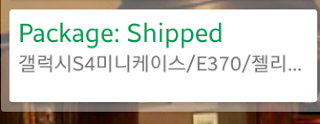
For a while now, Google Now has recognized when I receive an email from the Korean online shopping site G-Market. Even though the confirmation and shipping update emails are in Korean, Google Now still shows cards in English letting me know the package has shipped. Im not sure if it works for other online shopping sites.
It doesnt offer a direct link for live package tracking as it does in the US. I dont think that would be hard to implement, as you can take the tracking number and manually put it into the CJ Delivery site for semi-live step-by-step delivery information. Your G-Market "recent orders" page also includes a such a link.
Here are the cards as they appeared when I recently ordered a new phone case:

Wednesday, August 3, 2016
Exchange 2010 Error A reboot from a previous installation is pending
Exchange 2010 Error A reboot from a previous installation is pending
If you are seeing this error while trying to apply an Exchange SP or RU and you have restarted heres a quick fix for it:
**MAKE SURE YOU RESTART FIRST JUST TO MAKE SURE IT IS NOT CLEARING**
Delete the below key from the registry:
HKLMSYSTEMCurrentControlSetControlSessionManagerPendingFileRenameOperations
HKLMSYSTEMCurrentControlSetControlSessionManagerPendingFileRenameOperations
After this you will be able to continue your service pack install.
Good luck.
Tuesday, August 2, 2016
Arduino Day and Genuino Day 2016 Message from Arduino co founders
Arduino Day and Genuino Day 2016 Message from Arduino co founders
Massimo Banzi, Tom Igoe and David Mellis are in Berkeley to celebrate Arduino Day and Genuino Day. Heres their message to all the community of organizers, participants and all Arduino fans!
http://day.arduino.cc
Thursday, July 28, 2016
Arduino Mega read string from Serial display on 3 2 480 x 320 TFT LCD Shield
Arduino Mega read string from Serial display on 3 2 480 x 320 TFT LCD Shield

Arduino example run on Mega 2560, read string from Serial port, and display on 3.2" 480 x 320 TFT LCD Shield usin UTFT library. The sting is limited to 30 characters on each line.
Mega_UTFT_SerialRead.ino
/*
 * Example run on Arduino Mega 2560 to read string from Serial,
 * then display on 3.2" 480 x 320 TFT LCD Shield
 *
 * http://arduino-er.blogspot.com/search/label/3.2%22%20480%20x%20320%20TFT%20LCD%20Shield
*/

#include <UTFT.h>

extern uint8_t BigFont[];

UTFT myGLCD(CTE32HR,38,39,40,41);

const int NumOfRow = 20;
const int HeightOfRow = 16;
const int CharPerRow = 30;

String buffer[NumOfRow];

void setup()
{
 Serial.begin(57600);
 myGLCD.InitLCD();
 myGLCD.clrScr();

 myGLCD.setColor(255, 255, 255);
 myGLCD.setBackColor(0, 0, 0);

 myGLCD.setFont(BigFont);

 myGLCD.print("Open Serial Monitor,", LEFT, 0);
 myGLCD.print("to enter something.", LEFT, HeightOfRow);

 initBuffer();
}

void loop()
{
 String stringIn = Serial.readStringUntil( );
 Serial.print(".");
 if(!stringIn.equals("")){
 Serial.print("*");
 String stringToIns = stringIn.substring(0, CharPerRow);
 insert(stringToIns);
 Serial.println(stringToIns);
 printBuffer();
 }

}

void initBuffer(){
 for(int i=0; i<NumOfRow; i++){
 buffer[i] = "";
 }
}

void insert(String ins){
 for(int i=0; i<NumOfRow-1; i++){
 buffer[i] = buffer[i+1];
 }
 buffer[NumOfRow-1] = ins;
}

void printBuffer(){
 myGLCD.clrScr();
 for(int i=0; i<NumOfRow; i++){
 myGLCD.print(buffer[i], LEFT, i*HeightOfRow);
 }
}
Subscribe to:
Posts (Atom)